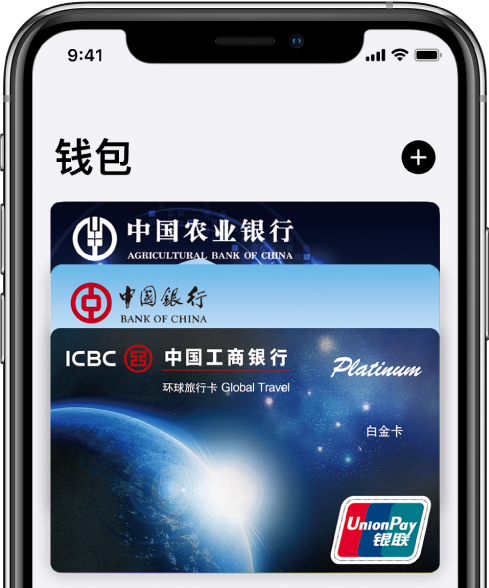
Put your bank card into your phone to pay, and use Apple Pay to perform payment operations. Not only is it faster, but it is also safer than swiping a physical card directly. This service allows you to easily complete payments at various supported places.
Before adding a card
Prepare a device that supports Apple Pay, like an iPhone, before starting the setup. Make sure the device system is updated to a newer version. You must have a valid Apple ID and be logged in. This is the basis for adding and managing cards. At the same time, confirm that the Apple Pay service is supported in your region, and many banks in mainland China have widely supported it.
Prepare a physical bank card that you plan to add, preferably a debit card or credit card that is frequently used and in normal condition. Keep the card handy so that you can quickly enter the card number and other information. Check whether your network connection is stable, because the adding process requires connecting to the network and the bank server for verification.
Add card via wallet app
Open the "Wallet" application on your iPhone, and you will see a plus sign "+" button in the upper right corner of the screen. Tapping this button will take you through the process of adding a card. Then, you can select the "debit or credit card" option, point the camera at the physical card, and the app will recognize the card number on its own.

If the automatic recognition fails to achieve the corresponding result, you can choose to manually enter the card number, then enter the validity period, and then enter the security code. When all inputs are completed, carefully read and agree to the relevant terms and agreements. The app then sends the add request to your card-issuing bank for review.
Add card via bank app
A particularly convenient method is to add it directly through the official mobile app of the card-issuing bank. Open the app of the bank you are using. Generally, you can find the "Add to Apple Pay" option in the "Card Management" or "Payment Settings" menu. This method can sometimes obtain the exclusive shortcut channel provided by the bank.
Relying on the bank App to add it may automatically associate your card information bound to the bank, thus reducing the complexity of manual input. After completing this operation, the bank will usually send an SMS notification to inform you that the card has been successfully added to the wallet. This method is especially suitable for users who are already using bank apps for financial management.
Complete the bank's verification process
After you submit the request to add, the bank will perform verification work to ensure that you did it yourself. There are many ways to verify, the more common one is to send an SMS verification code to your mobile phone number saved in the bank. You have to enter this set of numbers in time in the wallet application to complete the verification process.
For higher security reasons, some banks may require you to call customer service or use online banking for additional verification. The entire verification process is typically completed within a few minutes. Once verified, your card will appear in the wallet app and can be used for payments immediately.
Manage your payment cards
The first card successfully added to the wallet will be set as the default payment card. When you wake up Apple Pay by double-clicking the side button, this card will be displayed first. If you want to make changes, just long-press the target card in the wallet app and drag it to the front of the card stack.
If you want to further set the default card and transaction details, then in the settings of the iPhone, enter the "Wallet and Apple Pay" menu. Here, for example, you can set the express transportation mode for the transportation card, which makes it easier to take buses and subways. You can also long press and drag other cards to adjust their order, placing commonly used cards at the front.
Start paying with Apple Pay
When paying in an offline store, just bring your iPhone close to the contactless sensing area of the POS machine, and then use Face ID or Touch ID to verify. The payment process does not require opening the App and is extremely fast. When shopping in apps or websites that support Apple Pay, select Apple Pay as the payment method at checkout, which can also be accomplished with biometric verification.
You can also add Apple Pay to your transportation card to enter and exit the bus and subway systems in cities such as Beijing and Shanghai by swiping your phone directly. If the device is lost, you can immediately use iCloud to remotely lock the wallet function, or contact the bank to report the loss of the card. Fund security is guaranteed.
Have you ever tried using Apple Pay to take public transportation? How was your experience? You are welcome to share your experience and usage tips in the comment area. If you find this article helpful, don’t forget to like it and share it with friends in need.