Many users may not be aware that a full-featured and free media player is already installed on their computers.
Software source and core positioning
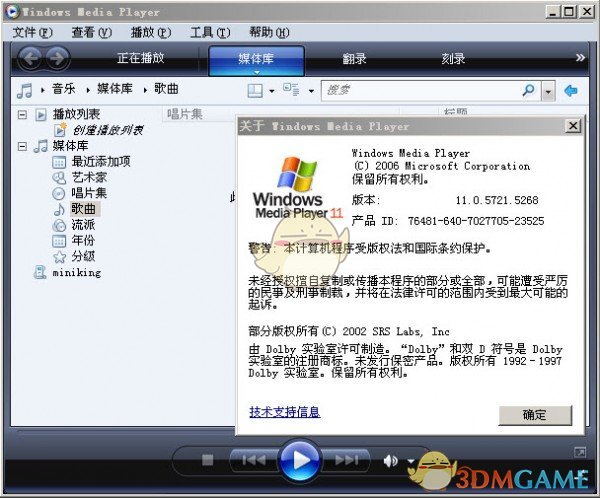
The software development comes from this product of Microsoft. It is installed directly in the Windows operating system. This means that most Windows users can directly use it to play music and videos without having to perform additional operations to download and install. Its full name is Windows Media Player, generally referred to as WMP for short.
As a system component, its primary advantage is stability and compatibility. In Windows 7 and later system versions, it has received better support, which includes allowing users to change the software skin to change the appearance. Although its interface looks relatively basic, it integrates many practical functions such as media playback, library management, and disc burning.
Supported media formats

For audio playback, WMP supports common formats such as MP3, WMA, and WAV, which is no different from mainstream players. Its real value is reflected in the gradual improvement of video playback capabilities. Especially in its 11th major version, native support for RMVB and RM formats has been added.
This shows that it is extremely easy for users to play such video files, which in the past required a separate decoder to be installed. All you need to do is double-click the file, and the software can call the built-in decoding for playback, which reduces the previous trouble of not being able to watch due to lack of plug-ins and improves the consistency of the user experience.
Playback performance and stability
This player shows quite good stability when actually playing videos. When the user uses the mouse to drag the playback window, or when the window size is adjusted at will, the video screen can generally maintain a smooth state, and there are rarely lags, stagnation, or program unresponsiveness.
This stable performance is due to its deep integration with the Windows system. The underlying software rendering works well with the system graphics interface to enable basic window operations without excessive resource occupation, ensuring playback continuity and avoiding frequent crashes.
Personalization and optimization
Users can optimize the playback experience by adjusting settings. Open the software, search for "Options" under the "Tools" item in the menu bar, and then enter the "Performance" tab. Here, users can select the connection speed according to their own network conditions. Generally speaking, ADSL or LAN users can select "DSL/Cable (768 Kbps)".
On the same page, you can also set the network buffering time and adjust it to about 30 seconds. This will preload more data when watching videos online, thereby effectively reducing the buffering wait during playback and making watching smoother. These very detailed setting options allow the software to adapt to different usage environments.
Media synchronization and management functions
It not only has a playback function, but also a powerful media library management tool. Users can synchronize music, videos and pictures to various portable devices, such as some early MP3 players, including memory cards or some special devices. They only need to use a data cable to connect the relevant devices, and the software will generally automatically identify it and select the appropriate synchronization mode.
The software provides a "random synchronization" function, which can automatically calculate the remaining space of the device and fill it with random content in the media library, thereby making listening more interesting. The "reverse synchronization" function allows photos taken on a device (such as a mobile phone) or downloaded music to be transferred back to the computer's media library to facilitate data archiving.
Cross-device sync solution
Software that provides a "guest synchronization" function is aimed at users who need to manage media content between multiple computers, such as home computers and office computers. This function can help users' portable devices automatically obtain the latest content from different computer media libraries to keep device content updated.
During the synchronization process, the software interface will use an intuitive progress indicator to display the estimated remaining time, so that users can clearly understand the degree of transmission. Such a function designed around "synchronization" provides a real solution for users to manage media files between multiple devices at a time when cloud computing services have not yet become widely popular.
In daily life, are you more accustomed to using the player that comes with the system, or do you choose to install third-party software to play videos and music? You are welcome to share your choice and reasons in the comment area. If you find this article helpful, please like it and support it.