
Many people have experienced the anxious feeling when they accidentally delete important files. Fortunately, whether you are a computer novice or an experienced user, there are many methods you can try to recover lost data.
Main interface classification boot recovery

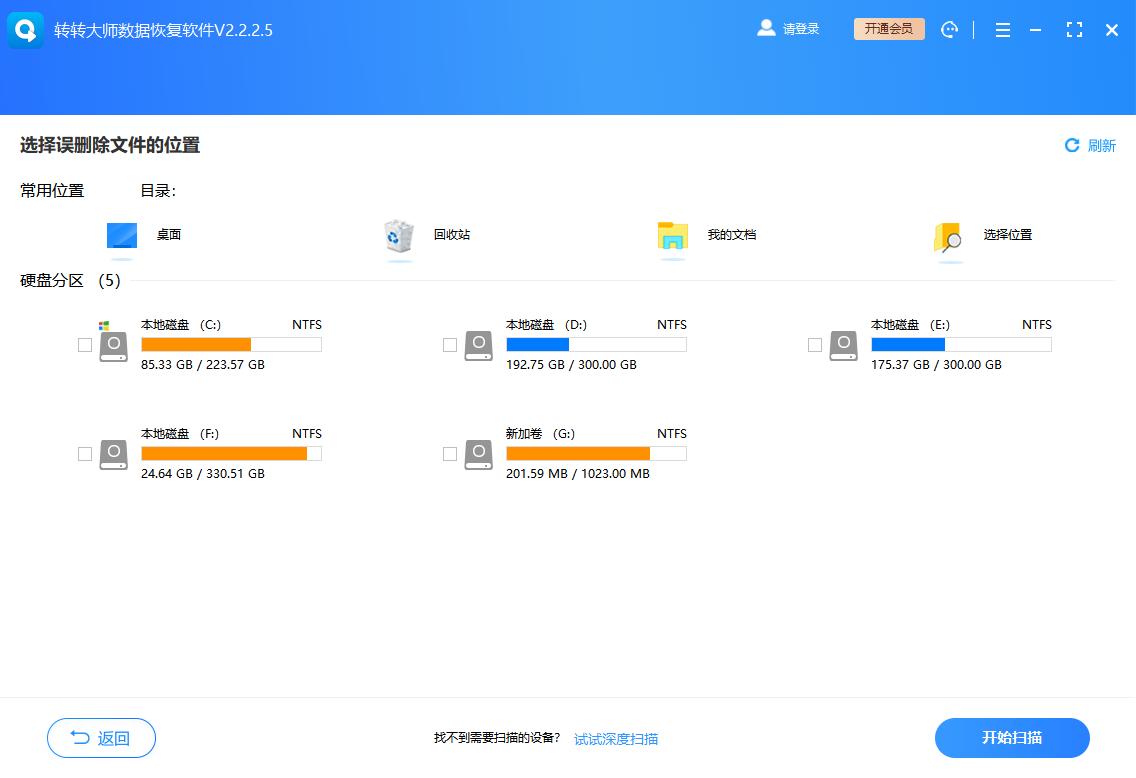
When you open professional data recovery software, the first thing you see is a clear function selection page. It usually lists various recovery scenarios such as "accidental deletion of files", "accidental formatting", "U disk recovery", etc. This is not just a collection of functions, but a targeted recovery entry given by the software based on your different reasons for data loss. Choosing the correct recovery mode is the first step towards success. It can guide the software to use the most appropriate scanning algorithm, thereby improving the performance and success rate of finding target files.
Real-time scanning and progress monitoring
First select the recovery mode, then select the partition where the lost files are located, and then the software will start a deep scan. During the scanning process, the software interface is not static. It will dynamically display the current scan progress percentage, the number of scanned sectors, and the number of potentially recoverable files discovered in real time. This kind of real-time feedback is very important. It allows you to understand the progress of the scan, especially when it takes a long time to scan a large-capacity hard disk, so that you can have peace of mind and avoid blind waiting.

Organization and classification of scan results
After scanning, the software will present the searched files to you in a highly organized form. Common classification methods include filtering and sorting by file type (such as pictures, documents, videos), original path, file name or modification date. This means that you don’t need to blindly search through massive amounts of raw data, and can quickly locate files based on the file characteristics you remember. For example, you can just view all JPG images, or sort by date to find files that were deleted yesterday.
File preview confirmation content
This depends on the preview feature, which is crucial before deciding which files to recover. Most professional software supports direct preview of common file types, such as JPEG images, TXT documents, PDF files and thumbnails of MP4 videos. You don't need to restore files to the hard disk, you can open them directly in the software interface to confirm whether their contents are complete and whether they are the files you really need. This step can effectively avoid recovering wrong files and save time and hard drive space.
Perform recovery and path selection
After confirming the files you want to recover, check them and click the "Recover" button. At this time, the software will pop up a window that allows you to choose where to save the file. There is a rule that must be kept in mind: Never restore files to the partition or disk where the data was originally lost. For example, if a file is deleted from the D drive, you should choose to save it to the C drive or an external mobile hard drive. This is done to prevent newly written data from overwriting the storage area of the old file, causing permanent irrecoverable consequences.
Utilize system and cloud backup
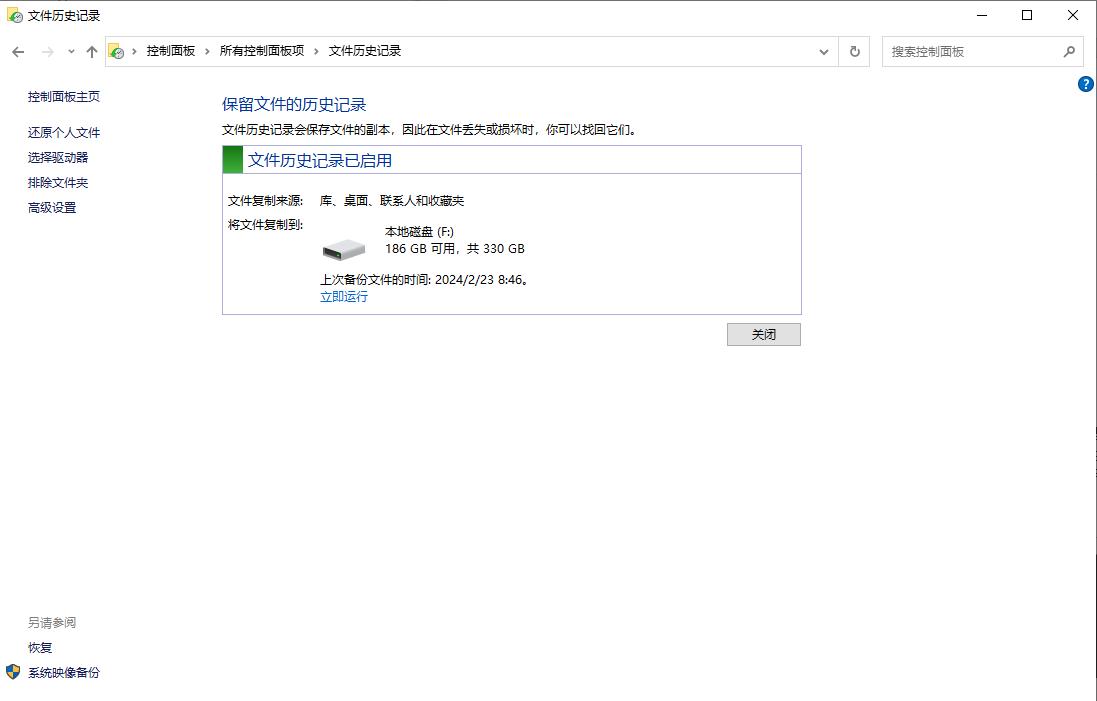
In addition to professional software, some built-in functions in the system can also play a role at critical moments. For example, the "File History" backup or system restore point that is often turned on can be rolled back to the previous state after major changes are made to the system or files are accidentally deleted. For daily office files, it is also a good idea to develop the habit of using cloud storage to synchronize (such as OneDrive and iCloud Drive). These services generally have "Recycle Bin" and "Version History" functions, which can easily retrieve recently deleted or overwritten files.
When you try to recover data, you always encounter the situation that causes recovery failure most often. Which situation is it? Is it because the file has been overwritten, or is it simply not possible to find a suitable recovery tool? Welcome to communicate and share your own experiences and doubts in the evaluation area.