Extracting audio from videos seems to be relatively simple. However, when actually doing it, many people are stumped by the format, parameters, and software selection, which in turn causes the sound quality to be damaged or the operation to become cumbersome.

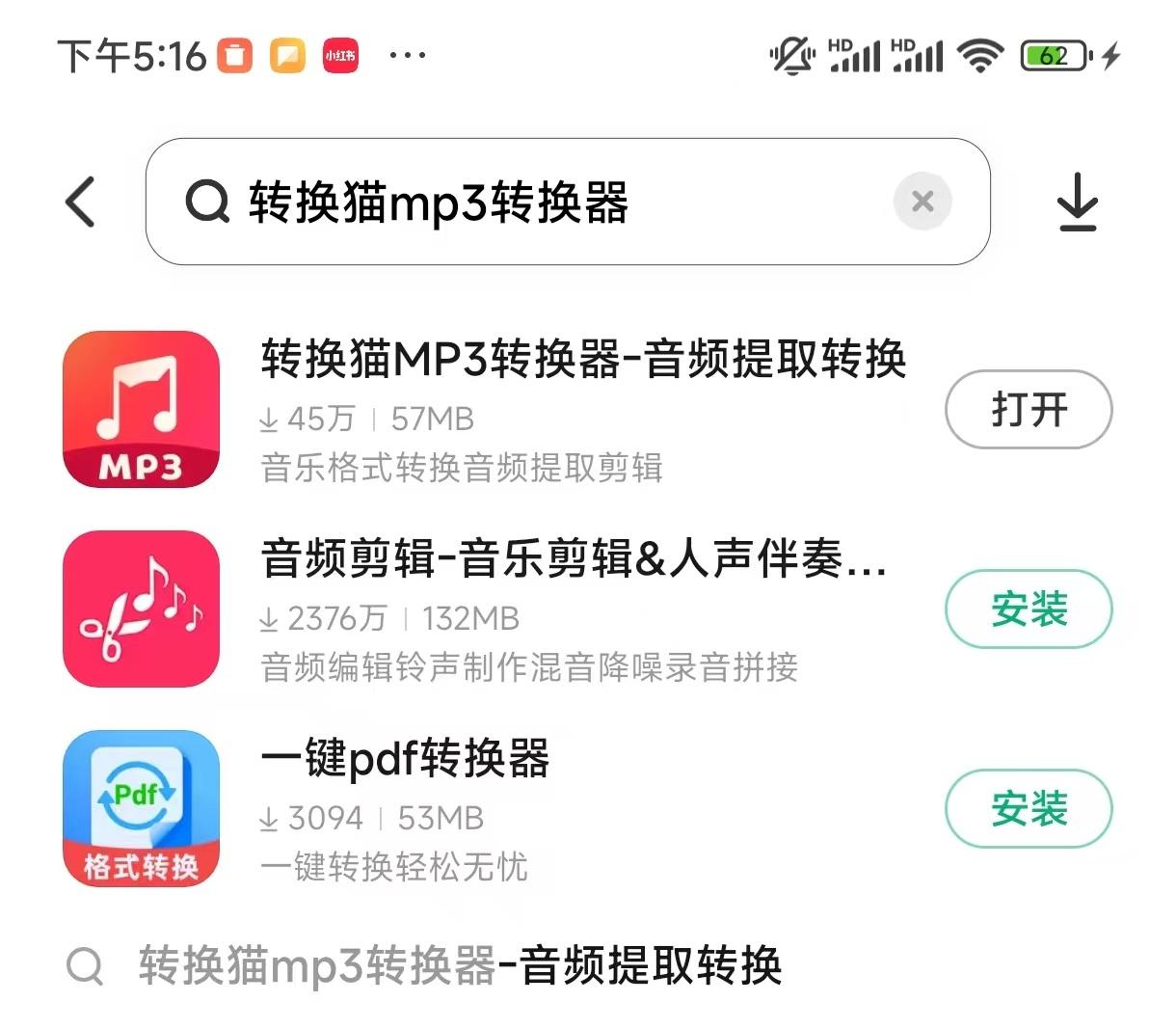
Convert Cat to MP3 Converter
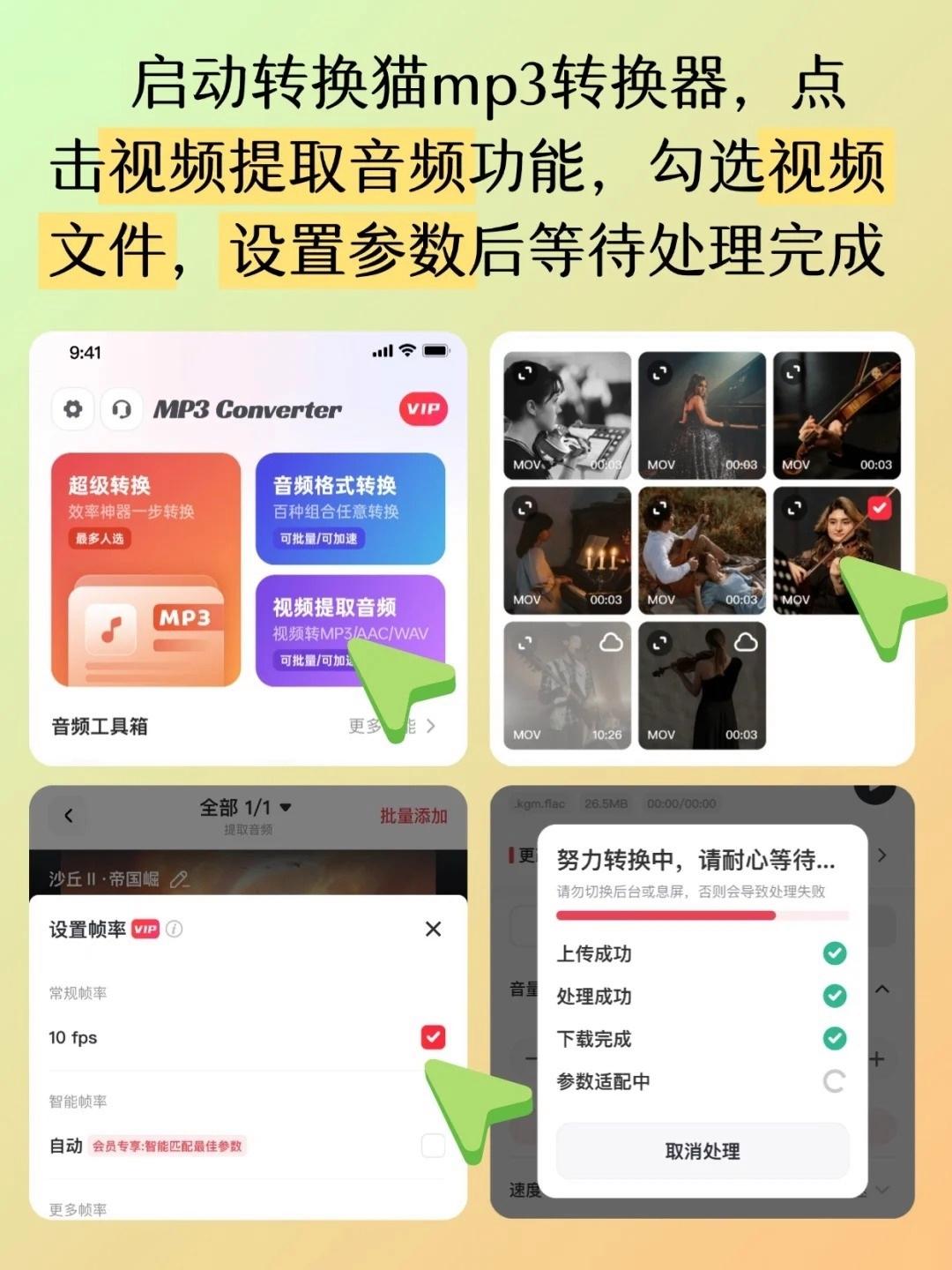
This software is extremely friendly for novices, especially on the Windows platform and the web version. It avoids the complicated situation of command line operations. After opening the software, directly select the "Video Audio Extraction" function, and then you can import common files such as MP4 and MKV.
The software provides a clear parameter setting interface. You can select the MP3 format and adjust the bit rate and sampling rate. After the settings are completed, you can convert the audio with one click and save the audio on your computer. The entire process does not require any professional knowledge background.
Audacity professional audio editing
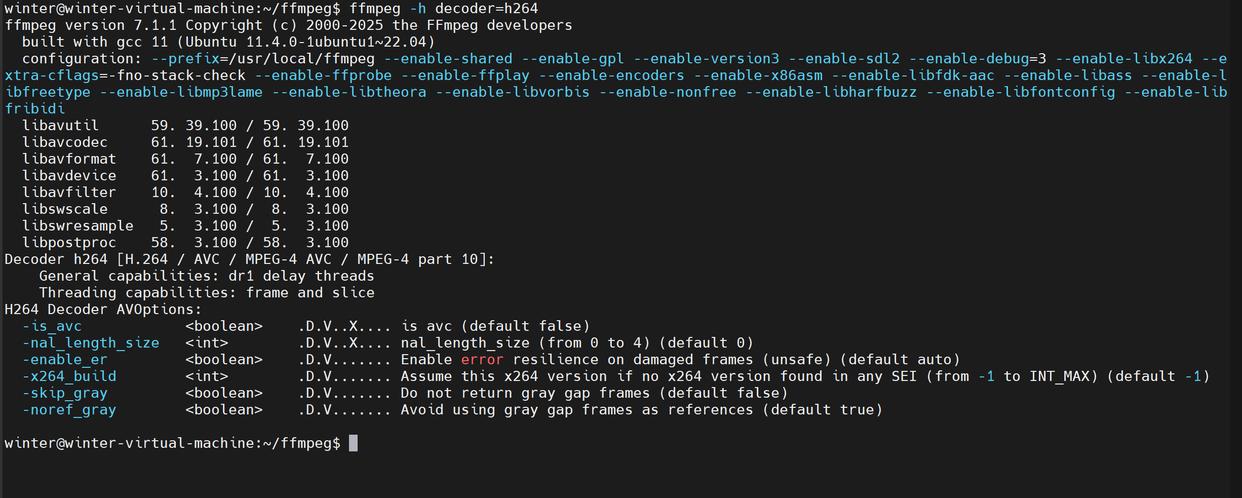
If you need to post-process the extracted audio, Audacity is a powerful and free option. It can not only extract audio tracks, but also a complete audio workstation. You can import the video files first and perform noise reduction, equalization or loudness normalization processing in the software.
After performing the processing operation, select the "Export" option in the "File" menu and select the format as MP3. During setup for export, you can specify in detail whether the encoding mode is VBR or CBR, and precisely set the bitrate and sample rate of 44.1kHz or 48kHz.
Efficient processing of FFmpeg command line
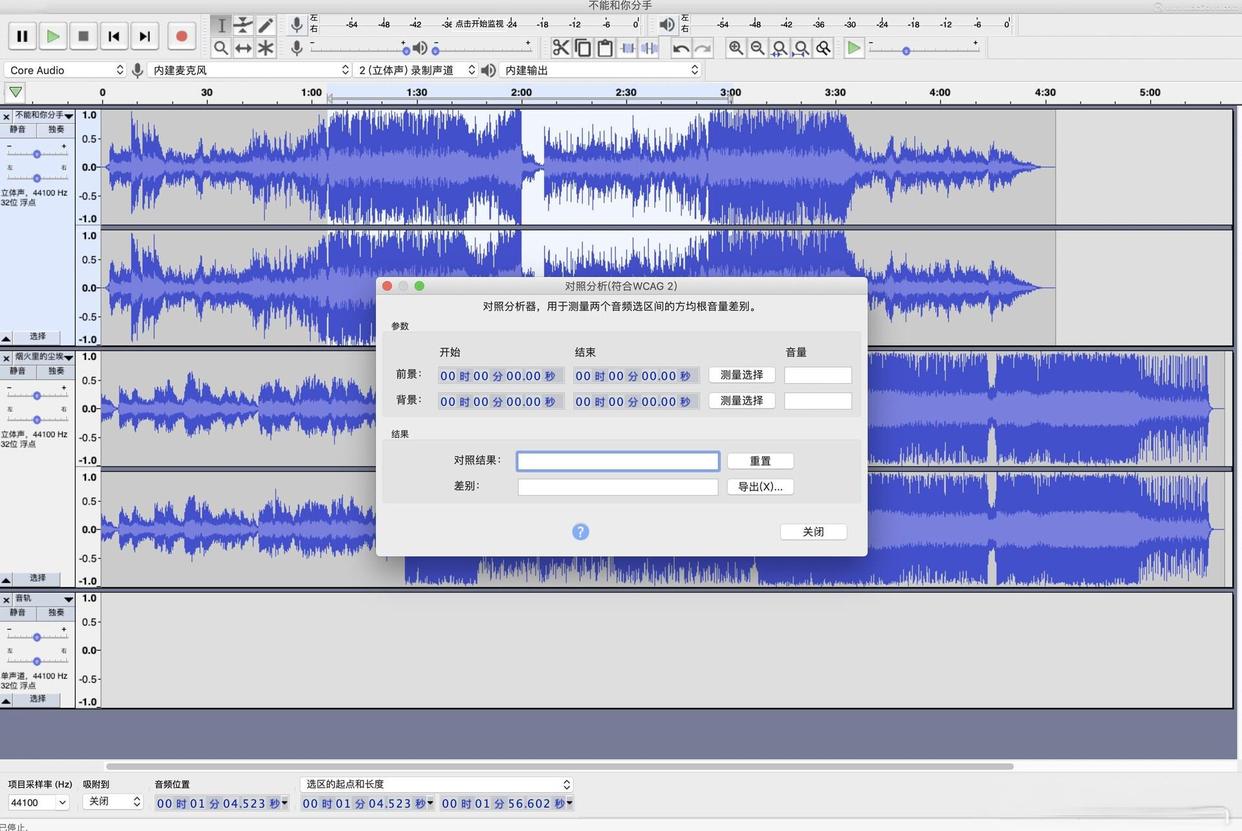
For those users who pursue efficiency and perform batch processing, FFmpeg is the ultimate tool. It does not have a graphical interface and relies on inputting instructions in the command window to operate. A basic extraction command is similar to "ffmpeg -i input.mp4 -vn output.mp3".
You can finely control the output by adding parameters, such as "-b:a 192k" to set the bit rate, and "-ar 44100" to set the sampling rate. After mastering a few core commands, it has the ability to process massive files at extremely high speeds and is the first choice for many professionals in the backend.
Audio extraction with HandBrake
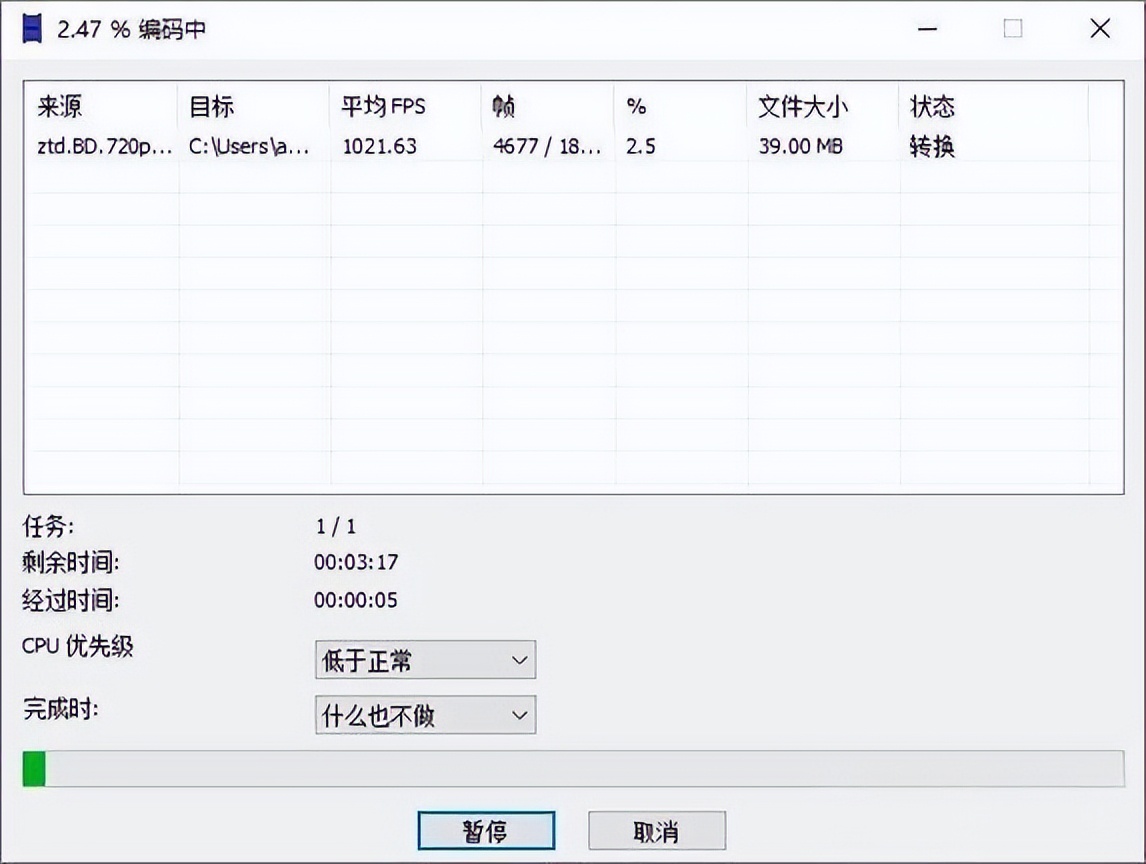
Many people know that HandBrake is used for video compression, but it also performs well in audio extraction. After opening the software, drag the video file into it and set the output format to "MP3" on the "Summary" tab page.
Then switch to the "Audio" tab, select "LAME MP3" for the encoder, and then you can set detailed parameters such as variable bitrate (VBR) or constant bitrate (CBR). Once set, it can be added to the queue to facilitate continuous processing of multiple tasks.
The convenience of online conversion tools
And when you are in a situation where it is inconvenient to install software, various online conversion websites can solve your urgent needs. For example, websites such as Zamzar and OnlineConvert can directly upload video files, select MP3 among the target formats, and convert with one click.
However, you should pay attention to file security and privacy when using online tools. Free versions generally have limitations on file size or frequency. For videos that are very sensitive or too large, it is recommended to use local software to process them first to avoid upload risks and data leakage.
Format Factory’s one-stop solution
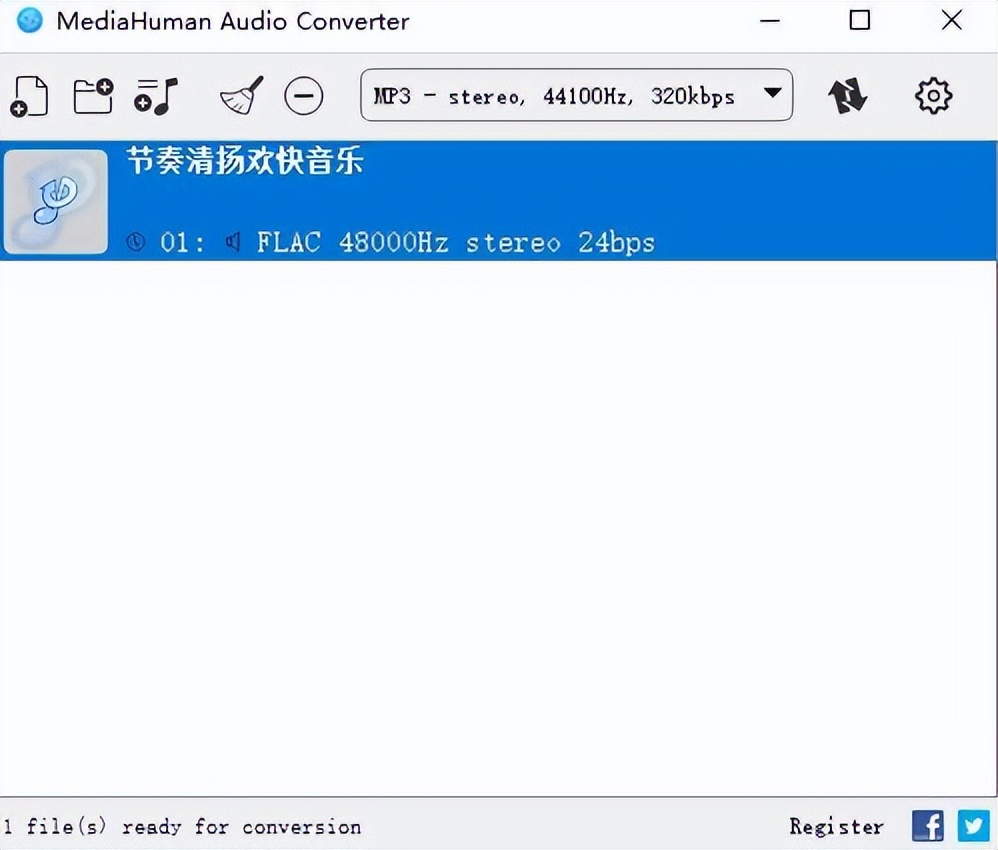
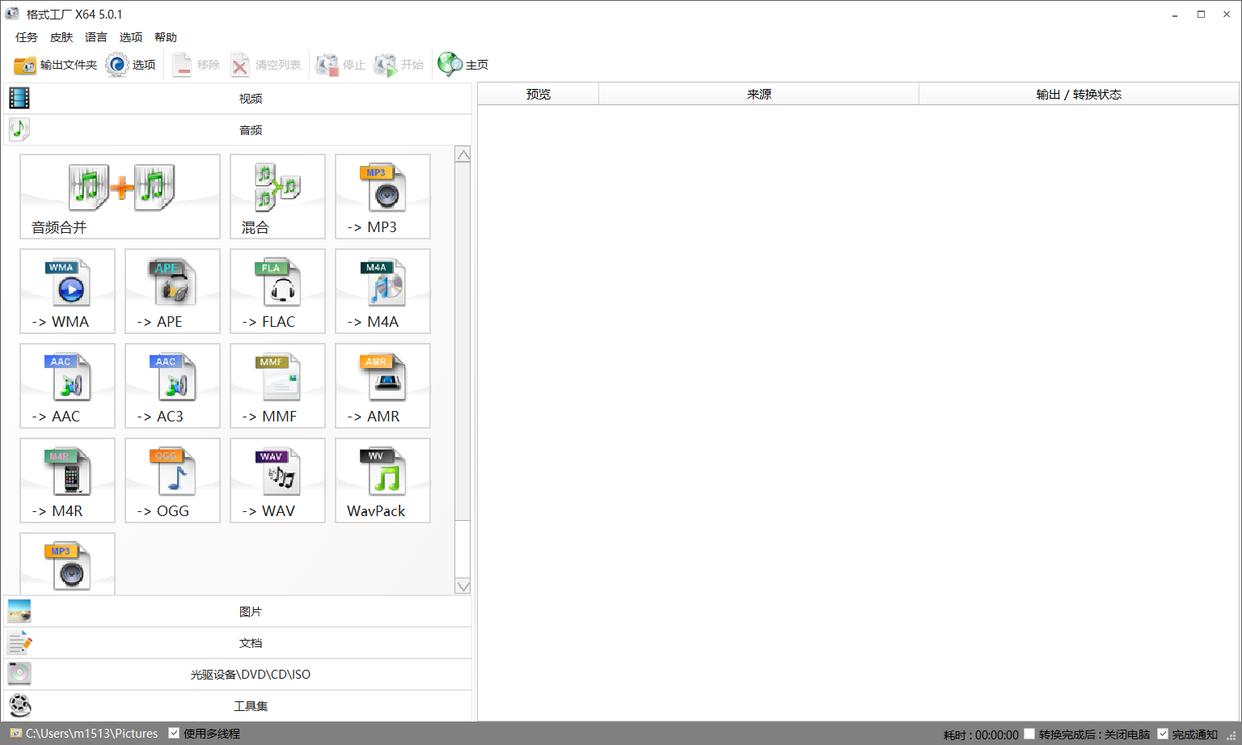
Regarding Format Factory as a long-established conversion tool that covers multiple formats, its audio extraction function is intuitive and easy to use. After starting the software, select the "Audio" category on the left, and then click on its "->MP3" option.
Videos can be imported in batches through the "Add Files" operation, and parameters such as bitrate, sampling rate, and sound channels can be uniformly set in the "Output Configuration". It supports almost all video formats and is suitable for everyday users who need to process files from multiple sources at once.
What are the most common problems you encounter when extracting video and audio? Are you unable to find suitable tools, or are you confused by the many messy professional parameters? You are welcome to share your specific scenarios in the comment area, and I will make more targeted suggestions for you. If you think these steps are helpful to you, don't forget to like and share them with more friends.