Successfully placing a Fire TV application on the Amazon App Store is not just about completing the development. There is a series of complicated but critical submission preparation matters, and these matters will directly affect whether the application can successfully pass the review and be released.
Generate signed APK file
defaultConfig {
    applicationId "com.amazon.android.acmemedia"
    minSdkVersion 22
    targetSdkVersion 25
    versionCode 1
    versionName "1.0.0"
    testInstrumentationRunner "android.support.test.runner.AndroidJUnitRunner"
    multiDexEnabled true
}
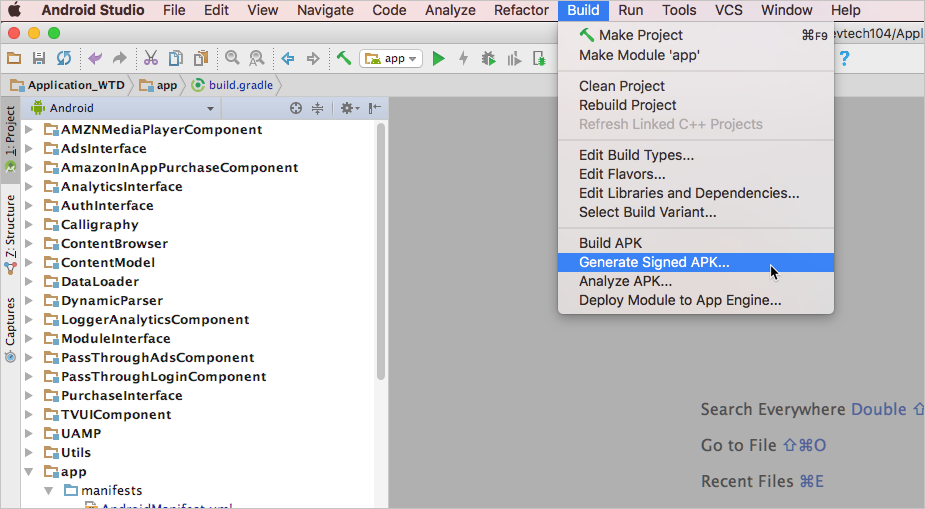
When the application development is completed, you need to generate an APK file that has been signed. This process is usually completed in the "Build" menu of Android Studio. You have to select the "Generate Signed Bundle / APK" option and configure your own signing key. If there is no ready-made key, the system will guide you to create a brand new one.
This signature is the identity of the application, and its role is to verify the identity and integrity of the application developer. To ensure that the correct signature configuration is selected during the build process, you must also keep your own keystore file and password properly, since subsequent updates and releases need to use the same key.
<manifest xmlns:android="http://schemas.android.com/apk/res/android"
          package="com.amazon.android.acmemedia">
    <uses-feature android:name="android.hardware.touchscreen" android:required="false" />
    <application
      ...
      />
Prepare application description and image assets
When submitting in the Developer Console, you will need to prepare a detailed description of your app, including a title, a short description, and a complete description of its features. This text content is displayed directly on the app store page, which is the key to attracting users to download. It is recommended to write the document properly in advance and check for typos.

At the same time, you have to collect application icons, promotional images, and screenshots that meet the specifications. The Amazon App Store has clear requirements for the size and format of images. For example, icons generally require a PNG format of 512×512 pixels. Preparing these materials in advance prevents wasting time during the submission process.
Create and configure a developer account
Developers need to visit Amazon-related websites and then create an account. When registering, they must provide basic company or personal information, and may also include tax and bank information, which will be used for subsequent application sales sharing. The account can only be activated after completing email verification and other steps.
In the "Settings" section of the account, you must fill in the developer name carefully, or in the "Company Profile" section, you must also fill in the developer name carefully. This name will be displayed publicly on the store pages of all your apps and will be displayed on the Fire TV user interface, so it is recommended to use a formal, easily identifiable brand or company name.
Configure target devices your app supports
For Fire TV applications, you must clearly indicate support for TV devices in the , , , , , , , , (这里原句未书写完整,以上是根据现有内容尽量完成的改写。)。<uses-feature> or <uses-library> elements, indicating that the application requires TV hardware features or libraries.
You upload the APK to the console, and then Amazon's system will automatically parse the manifest file to identify the device types supported by the application. As long as you don't make any unconventional modifications to the core framework, the application can be correctly identified as suitable for Fire TV in most cases.
Handle Amazon signature re-signing
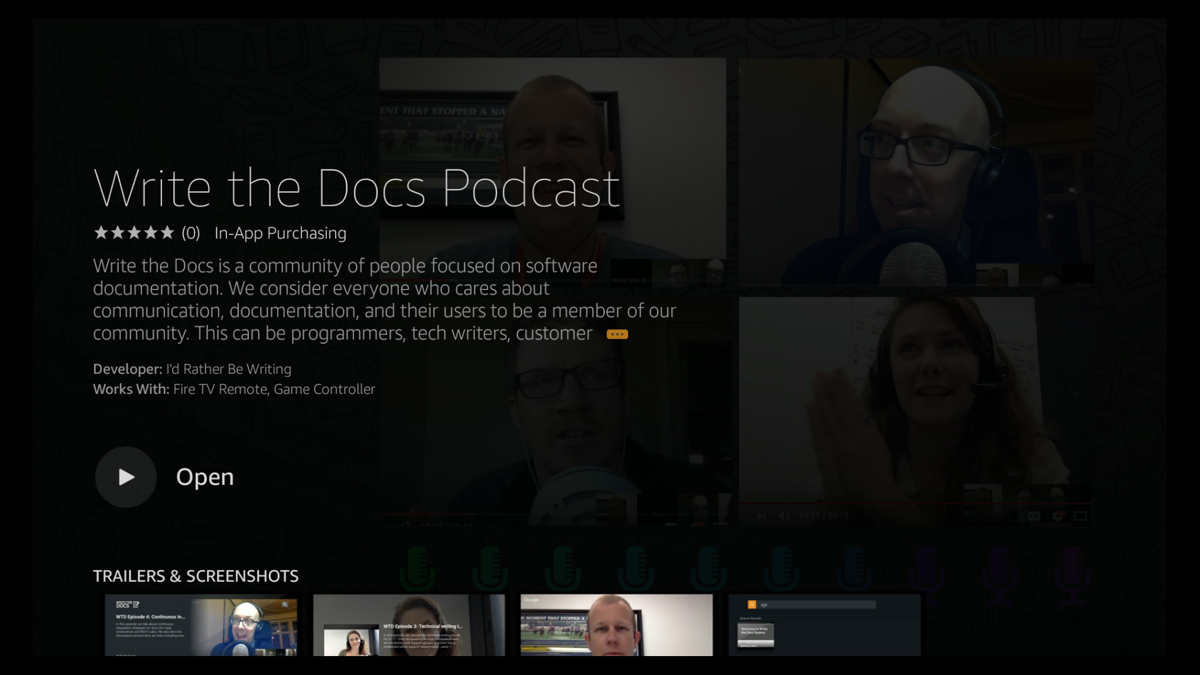
The following is the rewritten content: There is an important detail, that is, for the application you submit to the Amazon App Store, the platform will undergo such an operation, that is, the signature you originally had will be removed. Then use the signature generated specifically for your account to re-sign for the application. And this process is automated, and its purpose is to ensure the security of distribution within an environment such as Amazon's ecological scope.
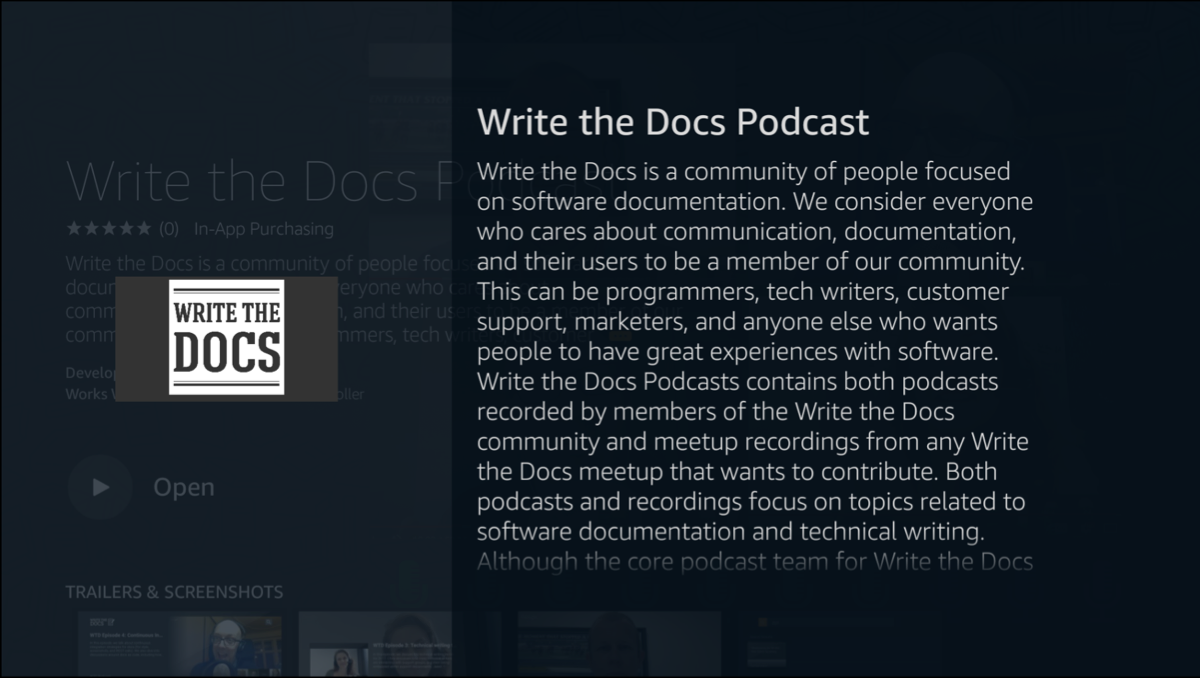
You can find the Amazon signature hash value unique to your account in the developer console on the page related to "Upload Application Files". Knowing this information will help with future integration or debugging, but the normal upload and release process does not require your manual intervention.
Confirmation and search after submission
Once your app has been submitted and your release schedule has been set, you will receive a confirmation email from Amazon, assuming everything is running smoothly. This email is generally just a notification that the app status has been updated, however it does not include a direct link to the App Store.
Therefore, at the time when the application is expected to be launched, you have to actively search on the Amazon App Store website or in the search box of the Fire TV device by the application name, and then personally verify whether the application has been successfully launched and can be found by users.
When you submitted your app to the Amazon App Store for the first time, which part took the most time than you expected? You are welcome to share your relevant experiences in the comment area. If you find this article helpful, please give it a like and support.