Many people have encountered the trouble caused by incompatible video formats. To find a solution to this problem, converting videos to MP4 format has become the first choice because it can be played smoothly on almost all devices.
Universal Advantages of MP4 Format

Among the most popular video container formats today is MP4. Its core advantage is its strong compatibility. Mobile phones can directly recognize and play MP4 files, tablets can directly recognize and play MP4 files, smart TVs can directly recognize and play MP4 files, and computers can also directly recognize and play MP4 files. This saves the trouble of finding dedicated players for different devices.
Not to mention its good compatibility, MP4 also performs well in terms of balance between image quality and size. Because it uses an efficient compression algorithm, it can significantly reduce the file size while maintaining high visual quality. This means you can fit more videos into the limited storage space, and it also helps share them over the Internet.
Professional conversion software operation
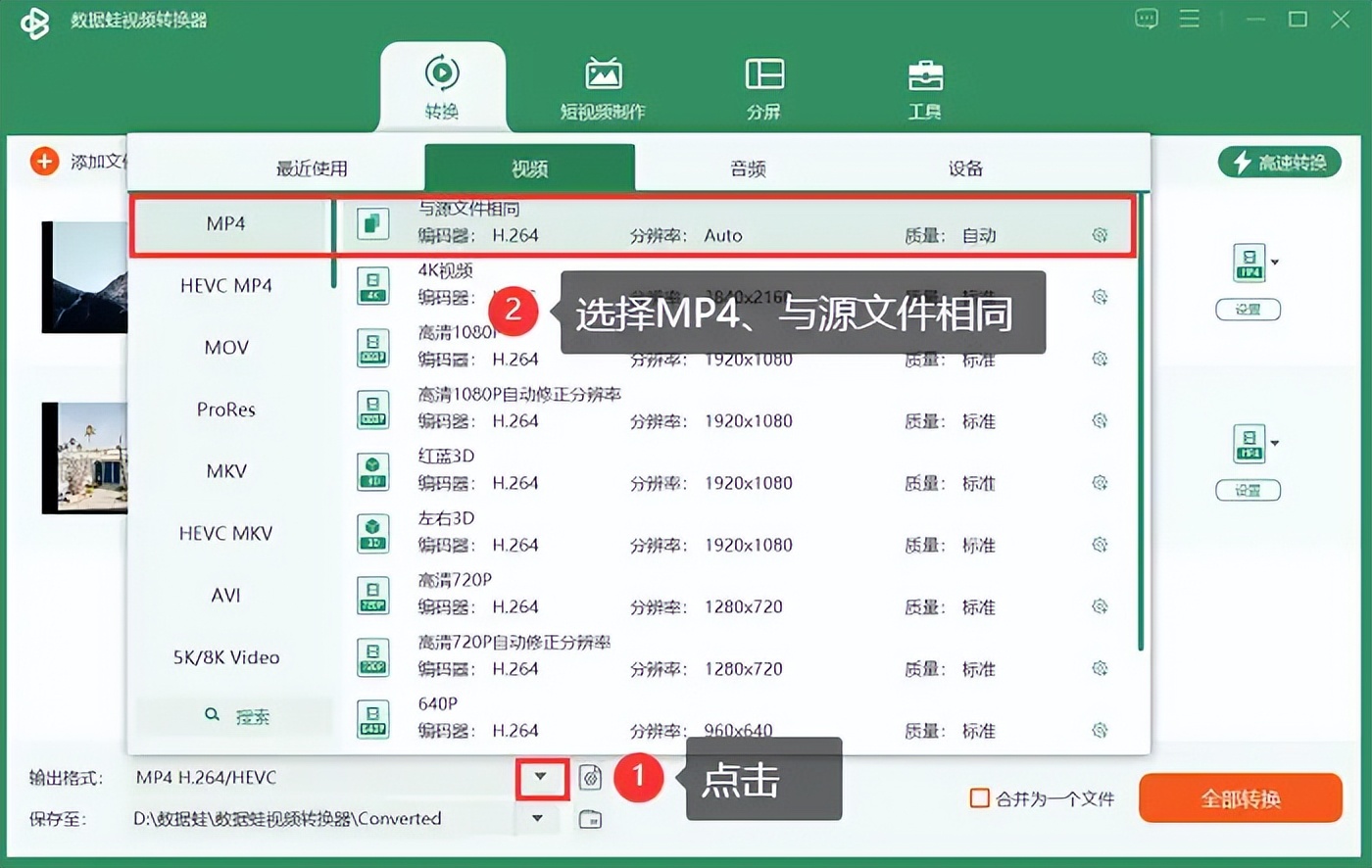
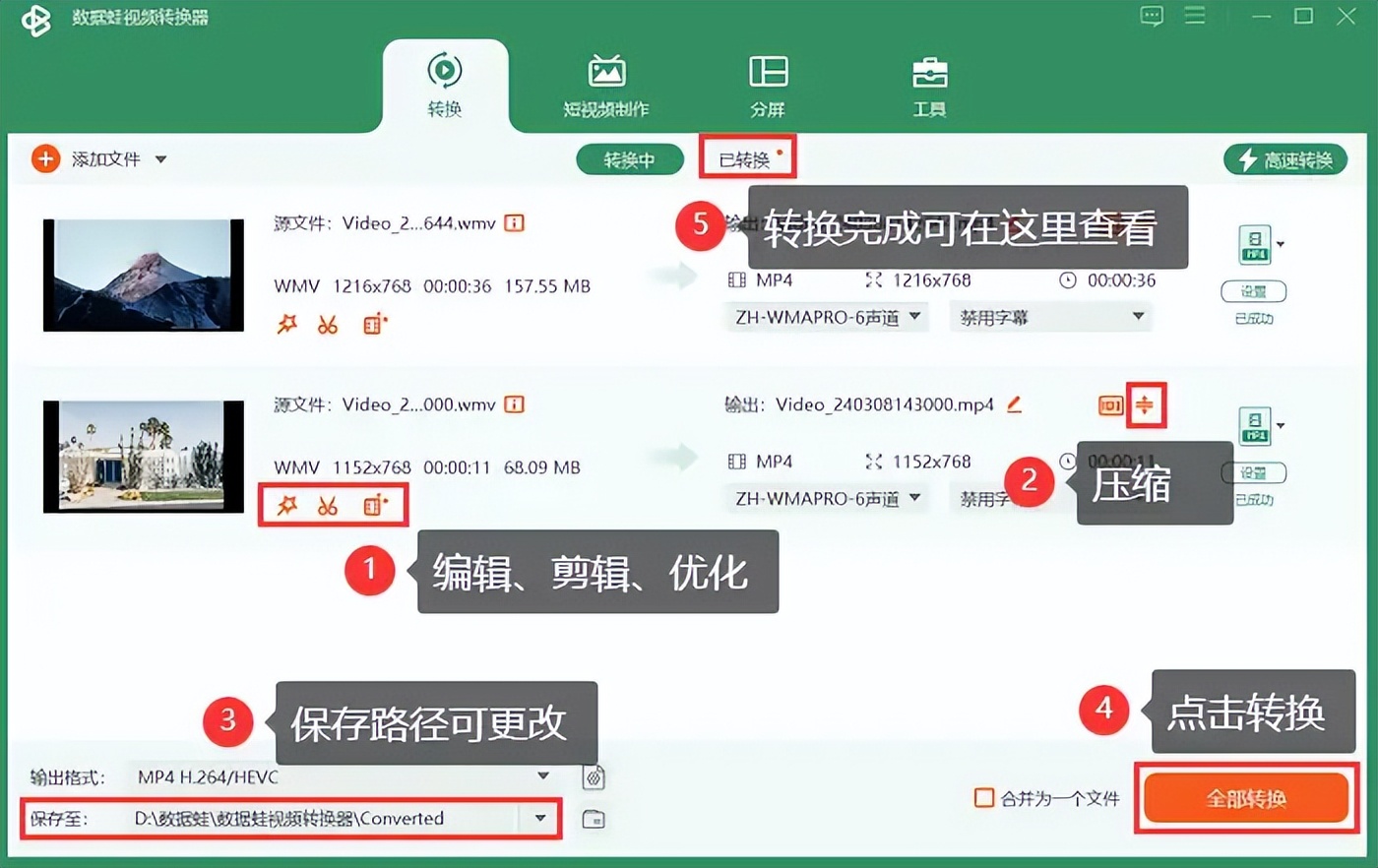
For users with frequent video processing needs, installing professional conversion software is a more efficient option. For example, Datafrog Video Converter, its version 1.0.10, has a relatively intuitive interface and quite comprehensive functions. After launching this software, you can use the "Add Files" button to import multiple videos to be processed at one time.
In the output settings, select MP4 as the target format. The software generally provides a wealth of parameter options, allowing you to adjust the resolution, bit rate, etc. according to your needs. After confirming the output path, click "Convert All" to perform batch processing, which saves time and effort.
Use of online conversion sites
If you only have occasional conversion needs and don't want to install software, then online conversion websites are a convenient alternative. Just search for "online video conversion" in your browser and you will find a large number of websites that provide such services. You just upload the file, select the MP4 format, and wait for the conversion to complete.
The most prominent benefit of this method is that it does not require downloading and installation operations and does not occupy local storage space. However, it generally depends on the network speed, and there are restrictions on the size of uploaded files. It is more suitable for processing video files that are not very long and not large in size.
Export using professional editing software
Professional video editing software such as Adobe Premiere Pro that includes powerful export functions. After completing video editing, you can enter the settings interface through the "Export" option under the "File" menu, select H.264 in the format, and an MP4 file will be generated.
In the export settings, you can finely control the encoding parameters of the video, such as frame rate, field sequence, and bit rate, to obtain a product that best meets your requirements. This method is suitable for users who need to directly output a common format after editing the video.
Directly modify the file extension name

When encountering certain situations, one of the easiest ways is to directly modify the suffix name of the video file. Find the video file on your computer, right-click it and select "Rename" to change the original suffix (like .avi, .mkv, etc.) to ".mp4". The system will give a prompt indicating that the changes may cause the file to be unusable, which requires you to confirm.
This method does not actually convert the encoding, but only changes the system's identification method. It is only applicable to those video files whose encoding itself is compatible with the MP4 container. If it cannot be played after the change, you still have to use the conversion tool mentioned above to re-encode.
The importance of choosing reliable tools
No matter which method you choose, choosing reliable tools is extremely critical. Many free tools on the Internet may be bundled with ads or unnecessary software. It is recommended to download from the official website or a trusted app store and preview the effect of the settings before conversion.
When performing the operation, be sure to retain the original file for backup to prevent accidental file damage during the conversion process. At the same time, understanding basic parameter knowledge, such as the impact of resolution and bitrate on image quality and file size, can help you make more appropriate choices.
For the videos in your hand, have you ever used any simple and effective video conversion methods? You are welcome to share your own experience in the corresponding comment area. If you think this article can help you, please also like it and support it.