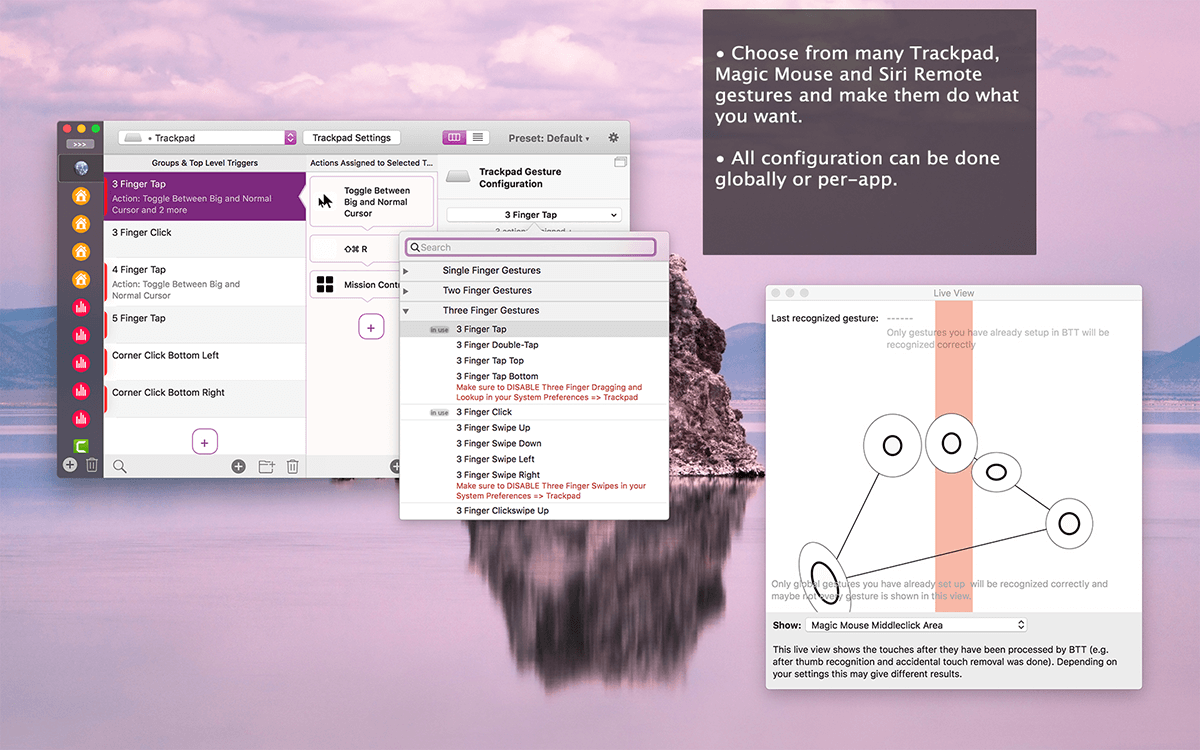
Many Mac users want to improve the operating performance of their trackpad or mouse, and are looking for a powerful custom gesture tool to simplify their workflow. The value of such tools is that they can turn complex operations into simple gestures. However, there are many subtleties worth understanding in how to select and use them.
Core functions and value of tools
The key function of this type of software is to allow users to create custom gestures for trackpads, Magic Mouse, and even ordinary mice. For example, tap with three fingers to perform a copy operation, or swipe with four fingers to switch desktops. This can condense multiple keyboard or mouse movements into one intuitive gesture, significantly improving efficiency in multitasking or creative work such as video editing and design.
In addition to basic gestures, advanced objects also allow you to set exclusive gestures for specific applications. This means that in the browser, a gesture can create a new tab page, and in the document editor, the same gesture may become a formatted paragraph. Such context-aware capabilities make objects extremely flexible, avoiding global shortcut key conflicts, and truly meeting the needs of different scenarios.
Initial installation and permission settings

After installing such enhanced tools on the Mac, the first step is usually to set system permissions. The user must enter the "Privacy and Security" interface in "System Settings" and check the application in the "Accessibility" list to allow it to control the computer. This step is the basis for the normal operation of the software.
For some functions related to screen control or window management, there is a possibility that the "screen recording" permission needs to be turned on. When starting the software for the first time, clear prompts will be given for these settings, and you can follow the wizard to operate. After completing the authorization, the software will often be in a permanent state in the form of a menu bar icon, so that settings can be called at any time.
Detailed setting logic of gestures
There is a settings panel, which is generally divided into two types: simple mode and advanced mode. The simple mode will provide preset solutions for commonly used gestures. This mode is suitable for people to get started quickly. As for the advanced mode, it allows users to carry out in-depth customization, and can also finely adjust the trigger area of each gesture, as well as the sliding speed, and even the devices associated with it, such as being able to distinguish between a trackpad and a mouse.
Users can define what operations are used to trigger gestures, and this may be either a system-level shortcut key, such as Cmd+C, or a complex AppleScript script, or simply directly open a specific application or a specific website. The logic of binding gestures to specific instructions is the core of the tool's effectiveness, making repetitive tasks accessible with one click.
Possibility of linkage with external devices
Outstanding tools are not limited to the Mac's own hardware. Some solutions can support interconnection with iPhone or iPad companion applications to achieve a series of operations such as controlling computer playback and page turning from a distance using mobile devices. This provides convenient conditions for speech or media playback scenarios.
Within the scope of its functions, it can achieve compatibility with niche input peripherals such as Apple remote controls and Leap Motion devices, and can convert and map specific actions of these devices into computer commands. This greatly expands the possibilities for interaction, and is especially suitable for users who are in specific professional fields or have special needs to explore and use it. Its significance cannot be underestimated.
Window management and efficiency tips
In addition to gestures, such tools often integrate window management enhancements. For example, after "window snapping" is enabled, when a window is dragged to the edge of the screen, it will automatically arrange it in half-screen or quarter-screen arrangement. This is a great efficiency improvement for users who need to frequently compare documents or data.
Users can use their own settings to quickly maximize and minimize the window using gestures, or transfer the window to a designated virtual desktop. These functions make up for some of the shortcomings of macOS's native window management. There is no need to memorize complicated shortcut keys, and the workspace can be organized efficiently with muscle memory gestures.
Long-term use and maintenance recommendations
After completing the settings, the software usually runs silently in the background and occupies relatively few resources; with the help of menu bar icons, global gestures can be quickly turned on and off, or the application currently in the foreground can be individually disabled, which can avoid interference in some applications with precise operation requirements.
It is recommended to back up your own unique gesture configuration regularly. Once you change the computer or reinstall the system, you can quickly return to the working environment you are already familiar with. At the same time, you should pay attention to the official updates of the software, because the new version usually adds support for new system features and compatibility with new devices.
For now, on a Mac, do you mainly use a trackpad, a mouse, or other input devices? Have you ever been in such a situation that because a certain operation is not convenient enough, you really hope to have a gesture to complete it? Welcome to share your usage scenarios or efficiency pain points in the comment area.