
The processing of various different versions of Excel files is a real problem that many data analysts and office workers will encounter. Choosing the right Python tool can double the effectiveness of your work and avoid falling into compatibility pits.
Why you need different tools
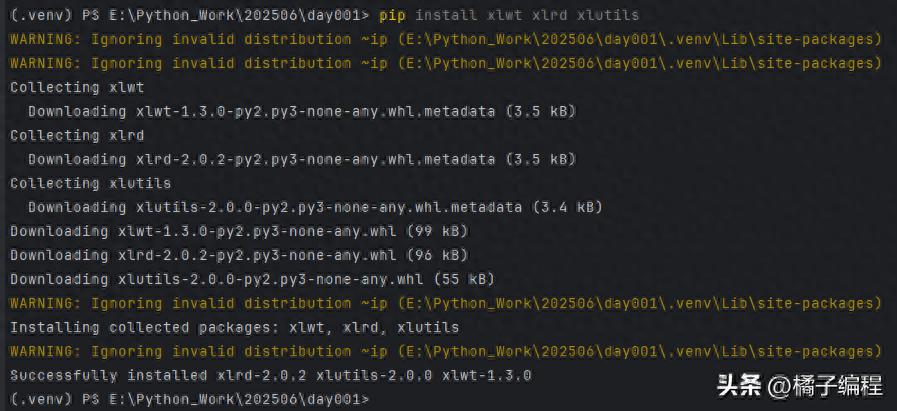
pip install xlwt xlrd xlutilsEarly versions of Excel used the binary xls format, and the 2007 version and later versions used the xlsx format based on Open XML. The underlying structures of these two formats are completely different, so different libraries are used to read and write. In the Python ecosystem, there are mature third-party library solutions for these two formats.

If you are processing xls files from old systems or provided by a specific organization, you must use a library that supports this format. If you ignore the version difference and directly use the new version of the tool to operate on the old file, generally speaking, it will cause the program to report an error or fail to read the data.
# 导入csv模块,用于读取和写入csv文件
import csv
# 导入defaultdict模块,用于创建一个默认值的字典
from collections import defaultdict
def analyze_orders(csv_file):
    """
    分析订单数据
    读取CSV文件中的订单信息,并进行统计分析
    参数:
    csv_file (str): 订单数据的CSV文件路径
    返回:
    无
    """
    # 初始化统计变量
    total_orders = 0
    total_revenue = 0.0
    status_counts = defaultdict(int)
    product_sales = defaultdict(int)
    try:
        # 打开CSV文件并读取订单数据
        with open(csv_file, mode='r', encoding='utf-8') as file:
            reader = csv.DictReader(file)
            for row in reader:
                total_orders += 1
                quantity = int(row['Quantity'])
                price = float(row['Price'])
                total_revenue += quantity * price
                status = row['Status']
                status_counts[status] += 1
                product_id = row['Product ID']
                product_sales[product_id] += quantity
        # 打印分析结果
        print(f"订单总数: {total_orders}")
        print(f"总销售额: ¥{total_revenue:.2f}")
        print("n订单状态分布:")
        for status, count in status_counts.items():
            print(f"{status}: {count} 单 ({count / total_orders:.1%})")
        print("n最畅销产品TOP3:")
        top_products = sorted(product_sales.items(), key=lambda x: x[1], reverse=True)[:3]
        for product, sales in top_products:
            print(f"{product}: {sales} 件")
    except FileNotFoundError:
        print(f"错误: 文件 {csv_file} 未找到")
    except Exception as e:
        print(f"读取文件时出错: {e}")
# 使用示例
if __name__ == "__main__":
    analyze_orders("orders_export.csv")
Read traditional xls file
Regarding files in xls format, the xlrd library is a classic choice. It is specially used to read this old format. When using it, you must first install this library. This can usually be done with pip install xlr command. Then import the module and call the open_workbook function to load the file.
import random
import xlwt
student_names = ['关羽', '张飞', '赵云', '马超', '黄忠']
scores = [[random.randrange(50, 101) for _ in range(3)] for _ in range(5)]
# 创建工作簿对象(Workbook)
wb = xlwt.Workbook()
# 创建工作表对象(Worksheet)
sheet = wb.add_sheet('一年级二班')
# 添加表头数据
titles = ('姓名', '语文', '数学', '英语')
for index, title in enumerate(titles):
    sheet.write(0, index, title)
# 将学生姓名和考试成绩写入单元格
for row in range(len(scores)):
    sheet.write(row + 1, 0, student_names[row])
    for col in range(len(scores[row])):
        sheet.write(row + 1, col + 1, scores[row][col])
# 保存Excel工作簿
wb.save('考试成绩表.xls')
For example, to read a file named "Sales Records 2006.xls", the code can specify the file path. xlrd will map the workbook, worksheet and cell data into Python objects. With the help of row number and column number index, you can obtain the specific cell value or text content.
header_style = xlwt.XFStyle()
pattern = xlwt.Pattern()
pattern.pattern = xlwt.Pattern.SOLID_PATTERN
# 0 - 黑色、1 - 白色、2 - 红色、3 - 绿色、4 - 蓝色、5 - 黄色、6 - 粉色、7 - 青色
pattern.pattern_fore_colour = 5
header_style.pattern = pattern
titles = ('姓名', '语文', '数学', '英语')
for index, title in enumerate(titles):
    sheet.write(0, index, title, header_style)
Write traditional xls file
Corresponding to xlrd, the xlwt library is responsible for writing data to xls format files. You have to create a Workbook object first, which represents a new Excel workbook. Next, use the methods of this workbook object to add and operate worksheets.
font = xlwt.Font()
# 字体名称
font.name = '华文楷体'
# 字体大小(20是基准单位,18表示18px)
font.height = 20 * 18
# 是否使用粗体
font.bold = True
# 是否使用斜体
font.italic = False
# 字体颜色
font.colour_index = 1
header_style.font = font
In the worksheet, write method can be used to fill in data towards the specified row and column positions. Finally, you must call the save method of the workbook to persistently save the data structure and content in the memory to the disk, thereby generating a physical xls file.
Set cell style
align = xlwt.Alignment()
# 垂直方向的对齐方式
align.vert = xlwt.Alignment.VERT_CENTER
# 水平方向的对齐方式
align.horz = xlwt.Alignment.HORZ_CENTER
header_style.alignment = align
During the writing operation using xlwt, you can set the cell style to beautify the table. This mainly covers four aspects: font, alignment, border and background. xlwt provides a special class for each item. For example, Font class is used to define the font name, size, color and whether to bold.
borders = xlwt.Borders()
props = (
    ('top', 'top_colour'), ('right', 'right_colour'),
    ('bottom', 'bottom_colour'), ('left', 'left_colour')
)
# 通过循环对四个方向的边框样式及颜色进行设定
for position, color in props:
    # 使用setattr内置函数动态给对象指定的属性赋值
    setattr(borders, position, xlwt.Borders.DASHED)
    setattr(borders, color, 5)
header_style.borders = borders
When setting the style, you need to first create the corresponding style object and configure the properties properly, and then pass the style object as a parameter to write method. In this way, you can set an eye-catching bold font for the table header or add a red background to important data cells to highlight it.
# 设置行高为40px
sheet.row(0).set_style(xlwt.easyxf(f'font:height {20 * 40}'))
titles = ('姓名', '语文', '数学', '英语')
for index, title in enumerate(titles):
    # 设置列宽为200px
    sheet.col(index).width = 20 * 200
    # 设置单元格的数据和样式
    sheet.write(0, index, title, header_style)
Read and write new style xlsx files
Regarding a series of files in new formats such as xlsx, the openpyxl library is regarded as a powerful, large and powerful choice. It strictly follows the specifications of the Office Open XML standard and can not only perform related operations such as reading and writing Excel files, but also other spreadsheets that are compatible with this standard. The library exists and has a major and obvious advantage, that is, it supports mixed operations of reading and writing on the same file.
import xlrd
import xlwt
from xlutils.copy import copy
wb_for_read = xlrd.open_workbook('阿里巴巴2020年股票数据.xls')
sheet1 = wb_for_read.sheet_by_index(0)
nrows, ncols = sheet1.nrows, sheet1.ncols
wb_for_write = copy(wb_for_read)
sheet2 = wb_for_write.get_sheet(0)
sheet2.write(nrows, 4, xlwt.Formula(f'average(E2:E{nrows})'))
sheet2.write(nrows, 6, xlwt.Formula(f'sum(G2:G{nrows})'))
wb_for_write.save('阿里巴巴2020年股票数据汇总.xls')
You can use openpyxl to open an existing file named "Financial Report.
Advanced operations using openpyxl
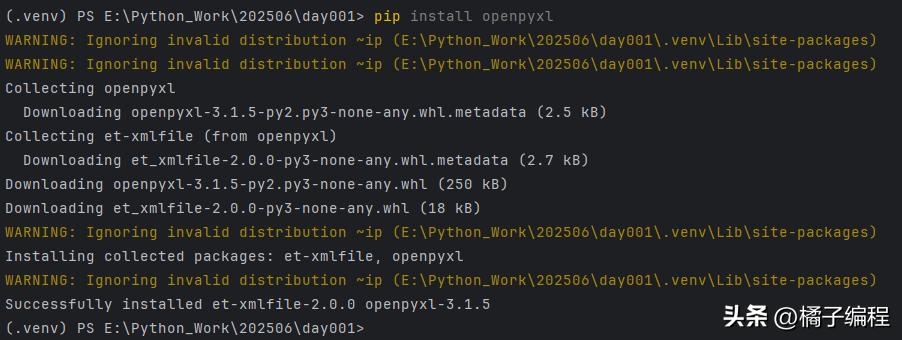
pip install openpyxlCompared with others, openpyxl has more prominent advantages in style editing and formula calculation. When making style adjustments, you can directly access the properties of the cell object, such as font , alignment , border , etc., to make modifications. This approach is an imitation of manual operations in Excel software. Its syntax is intuitive and easy to understand and implement.
Regarding formulas, you can assign an Excel formula string like =SUM(A1:A10) directly to value attribute of the cell. openpyxl will retain these formulas when saving the file. In addition, it also has the ability to support high-level functions such as creating pivot tables and inserting line charts or bar charts, which greatly expands programmatic processing capabilities.
When processing Excel data, do you more often encounter ancient xls files or more modern xlsx files? For mixed-format environments, do you have any efficient batch processing methods that you can share? Welcome to share your relevant experiences in the comment area. If you find this article helpful, please give it a thumbs up.