When encountering .iso files, many people's first reaction is that they are confused and don't know how to deal with it. In fact, with free tools and simple steps, you can easily open these files and install large software without burning a disc.
What is an ISO file
In essence, an ISO file is a comprehensive and complete image of a CD. It packages all the data in the CD, including the file system and startup information, into a single file. This format has become popular since the 1990s and is often used to distribute operating systems or large software.
When we have the need to install Microsoft Windows systems, or when using some professional design software, we often download installation packages in this format from the official website. The advantage is that the structure of the original disc can be completely preserved, ensuring that the installation process will not go wrong, and avoiding the risk of file damage during the copy process.

Why you need a virtual optical drive
In the past, if you wanted to use an ISO file, you had to burn it to a physical disc, which required an optical drive and a blank disc. Nowadays, most laptops and even desktop computers are no longer equipped with optical drives, making burning extremely inconvenient. Virtual optical drive software solves this problem perfectly.
It can simulate one or more "virtual" optical disc drives on your computer. This drive is no different from a real optical drive in the system's perception. It can directly load the ISO file and then run the program contained in it. This method saves the cost of purchasing optical discs and greatly improves efficiency and convenience.
Choose the right tool
There are many virtual optical drive software on the market, such as Daemon Tools Lite and Virtual CloneDrive. For novice users, it is recommended to choose Daemon Tools Lite, which is a free version with sufficient functions and a friendly interface. You can get the installation program from its official website or some trusted domestic software download sites.
The installation process is no different from ordinary software. Follow the prompts given by the wizard and click "Next" to complete the process. After completing the installation, the software will start when the system is turned on, and an icon will appear on the taskbar so that you can call it whenever you need it. When you use this software for the first time, it may prompt you to install additional virtual device drivers. Just follow the prompts and agree.
Load ISO file
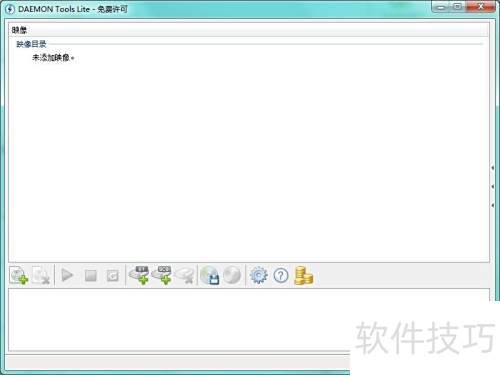
After opening Daemon Tools Lite, you will see the main interface. First, tap "Quick Load" or a similar button on the interface, and then find the .iso file you downloaded in the pop-up file browser. Select the file and click "Open", and the software will automatically load the ISO file into a newly created virtual optical drive.
At this time, open "This Computer" or "My Computer" on the desktop, and you will find that there is an additional CD icon in the drive list. This newly emerged drive is a virtual optical drive. The content displayed in it is exactly all the data in the ISO file you just loaded. You can view it just like browsing a normal folder.
Perform installation operations
After finding the virtual optical drive, double-click it and dig into it. Generally speaking, you will see an executable file called "setup.exe" or "install.exe", which is the software installation program. Simply double-click this file to open the well-known software installation wizard interface.
The subsequent process is exactly the same as installing the software from a normal CD or USB flash drive. Just follow the prompts to select the installation path and agree to the license agreement. During the entire installation process, the ISO file will always be "mounted" in the virtual optical drive, and even after the installation is complete, you do not need to perform any other operations on it.
Cleanup after completion
After the software installation is completed, it is recommended to uninstall the ISO image as soon as possible to release system resources. Return to the main interface of Daemon Tools Lite, find the corresponding virtual optical drive in the loaded device list, right-click it, and select the "Uninstall" or "Eject" option. As a result, the virtual optical drive icon will disappear from "This PC".
If you do not need to use this ISO file again at the moment, you can also remove this file in the image list of the software. For Daemon Tools Lite, just right-click the image file in the list and select "Remove". In this way, the software is kept clean and fresh, and misoperations are avoided.
When you first encountered an ISO file, were you planning to install some special software or game? You are willing to share your own experiences and gains and express your inner feelings in the comment area. If you think this article is helpful to a certain extent, then please click your thumbs to give praise and support, and share it with more friends who are in need.