
Nowadays, there are fewer and fewer computer optical drives. For many users, a tool that can read various optical disc image files has become a necessity when installing the system or running old software.
What is a virtual optical drive tool
The core function is virtual optical drive software that simulates a physical optical drive and creates a virtual device in your computer operating system. The device functions exactly like a real optical drive plugged into the case. Whether it is a Windows system or macOS, there are corresponding tools of this kind.

Its main job is to load image files in formats such as ISO, BIN, NRG, etc., which are used to package the entire disc content into a single file. Once loaded through the virtual optical drive, the computer will recognize it as if it is a real disc, and users can directly access and run the programs or data in it.
Why do you need a Chinese version?
Searching for this type of tool on Baidu yields a variety of results, including many versions bundled with ads or malware. It is extremely important to choose a version clearly marked as Chinese, so as to minimize the possibility of accidentally clicking unnecessary plug-ins during the installation process. The Chinese interface makes all setting options clear and reduces the difficulty of user operation.
As far as domestic users are concerned, it is generally a safe choice to obtain the Chinese version from some well-known software download sites. These websites usually provide security-checked software installation packages, and indicate the software version number and language information on the page to facilitate users to identify them.
Installation process and key choices
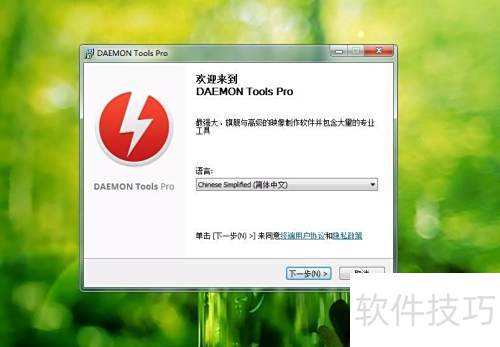
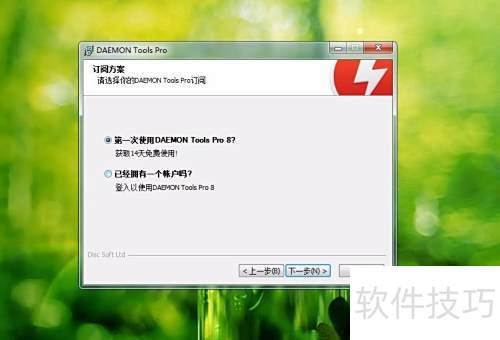
The downloaded installation package is generally a compressed file. After decompressing it, run the installation program. After starting the installation wizard, the first step is to select the language. Checking Simplified Chinese directly can make many subsequent steps clear and easy to understand. The interface that appears immediately will usually prompt the user to log in or have a free trial.
For individual users, simply select the "Free Trial" option to start using all the basic functions of the software. The trial period is usually 30 days, which is enough to complete most temporary image file loading tasks without having to pay for a license immediately.
Account verification and function customization
Some software will require a simple and convenient email verification operation when enabling early trial. Users need to enter a valid and normal email address to receive a temporary password or verification link, and in this way complete the trial registration process. The main purpose of this entire process is to prevent the software from being installed endlessly and repeatedly.
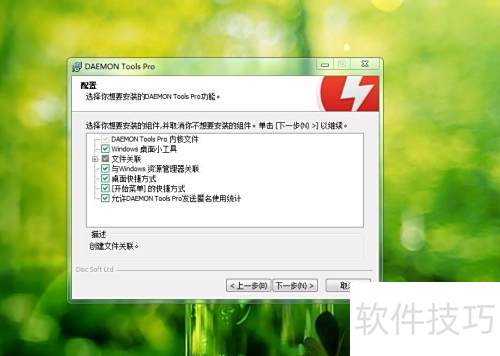
When entering the function configuration interface that appears subsequently, the software will list all components that can be installed, such as virtual optical drive drivers and file association tools. Unless you know for sure that certain functions are not needed, it is recommended to keep the default all-selected state to ensure that the software can run completely.
Complete installation and initial startup
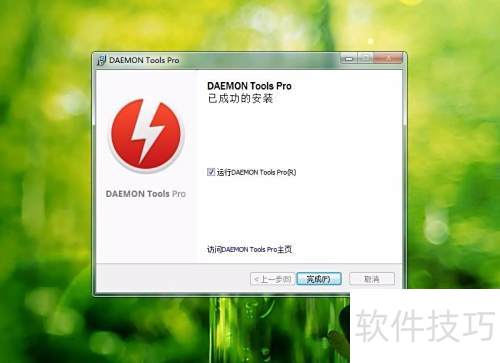
The installation path is generally set to the system's C drive by default. For most users, there is no need to change this setting. After clicking to install, wait for the progress bar to complete, and then click the completion button. After successful installation, the software icon will appear on the desktop or start menu.
Press the mouse twice to activate the startup software behavior, and you will see the main operation interface. The interface is generally relatively simple. The main functional areas include the "Image" area for managing image files and the "Device" area for managing virtual optical drive devices. The core operations start here.
Load and use image files
Click the button called "Add Image", in the pop-up file browser, find the ISO and other image files of the Storage on your computer, select and open them. This file will appear in the software's image list. To use it, just double-click the file in the list.
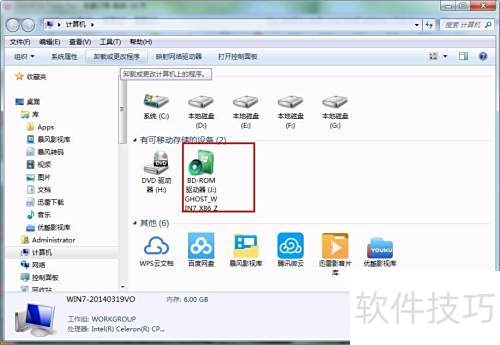
Immediately, the software will "load" the image file into the pre-created virtual optical drive. At this time, you can open "This Computer" or "My Computer" on your computer and you will see a brand new optical drive letter. Double-click the drive letter to access all the files and folders in the image, just like using a real optical disc.
During your daily work, which type of files do you more often use a virtual optical drive to process – are they larger ISO files used to install the operating system, or are they CD image files used to run some classic and old games?

