When selecting suitable network packet capture software, many people will be deterred by the complicated installation and configuration processes, especially when faced with different operating system versions.
Main applicable platforms of the software
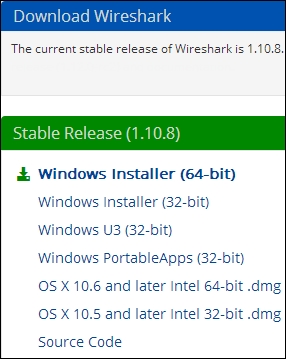
The current mainstream network analysis tools usually support Windows systems, covering the early 32-bit XP, as well as subsequent 64-bit Win7, Win8.1 and other versions. For Apple users, it is compatible with Mac OS X 10.5 and later series systems. In addition, most Linux and Unix distributions can also enable this tool to run. Such a wide range of platform support ensures that users can use it in different working environments.
On Windows and Mac systems, the installation process is generally relatively quick and convenient. Users can directly download the associated installation program from the official homepage corresponding to the software. For Linux systems, the situation will be more complicated and diverse. Many well-known distributions will provide this tool with the help of their own package managers. If the official version does not meet the needs, users can also obtain the source code and compile it themselves.
How to get the installer
If you are a Windows user, the most direct way is to visit the official software website. There is usually a prominent download button at the top of the page. Clicking that button will jump to the download page. The system will usually automatically recommend the version that is most suitable for the visitor's operating system based on the visitor's browser information.
In most cases, the website can accurately identify whether your system is 32-bit or 64-bit, and provide a link to the installation file that can be directly clicked. If you have an older version installed, the installer may prompt you that an update is available when it starts. This makes it easier for users to keep their software up-to-date.
Installation steps on Windows systems
When the download is complete, an executable file like "wireshark-win64-1.10.8.exe" will be obtained. Double-click the mouse to start the installation boot program. You need to agree to the software license agreement. After that, just click "Next" on each settings page.
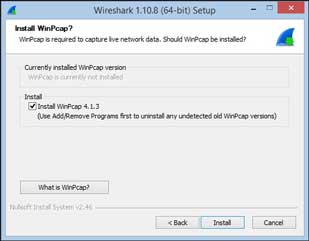
During the installation, there is a key step, which is to decide whether to install Npcap, which is a core component used to capture data packets from the network card. It may pause halfway through the installation, prompting you to install this driver. Click to confirm and continue. After completing all the steps, click "Finish" to start the software.

Installation points on Mac systems
The installation process on Mac is similar to that on Windows. The main difference lies in the capture driver. Mac and Unix systems do not use Npcap, but rely on a library called "libpcap" to achieve the function of packet capture.
Mac users may occasionally run into permission issues. For example, the software may need to obtain permission to access the network interface. In this case, the system pop-up window is usually used for authorization when it is first run. If authorization is required every time it is started, you can check the official documentation to find a configuration solution that can be used once and for all.
How to install on Linux system
When installing in a Linux or Unix system, the method varies depending on the distribution. The most convenient way is to use the package manager that comes with the system by default. For example, on Ubuntu or Debian, you can use the apt command, and on Fedora or CentOS, you need to use yum or dnf.
Detailed instructions for Linux installation can generally be found in the official documentation of the software. The path is similar to "/usr/share/doc/wireshark/", or Chapter 2 of the online manual. If the version in the package manager is too old, users can also choose to compile and install from source code to get the latest features.
Handle common installation issues
Installation failures are often caused by insufficient permissions. On Windows systems, you may need to run the installation program as an administrator; on Linux and Mac systems, you may need root permissions or sudo permissions to install the driver and create the configuration directory.
Another common problem is interception by firewalls or security software. When starting to install the capture driver, the system firewall may pop up a warning, which requires the user to manually allow it. Make sure that overly strict security software is temporarily turned off during the installation process, so as to avoid many unexpected interruptions.
Which operating system did you encounter the most trouble when installing packet capture tools on it? Please share your experiences and solutions in the comment area. If you find this article helpful, please give it a like and support.