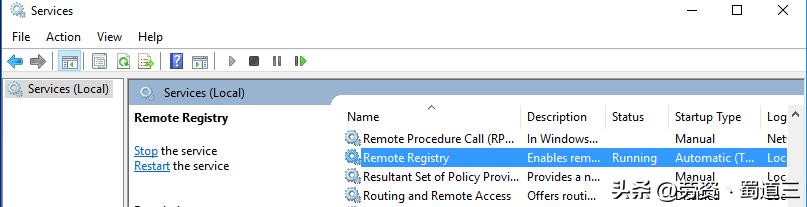
Allowing the computer's remote desktop function to be remotely enabled is a common requirement for IT administrators in daily maintenance. However, for those who are not familiar with related tools and commands, this process is full of technical details and potential risks.

Use Registry Editor to operate remotely
CD c:PSPStoolsRun the Registry Editor and connect to the remote computer through it to directly modify the key values that determine whether the remote desktop is enabled or not. After running the registry locally, select the "Connect Network Registry" item in the "File" menu, and then enter the host name or IP address of the remote computer.
PsExec.exe /accepteula RemoteComputerName_or_IP reg add "HKEY_LOCAL_MACHINESYSTEMCurrentControlSetControlTerminal Server" /v fDenyTSConnections /t REG_DWORD /d 0 /fPsExec.exe /accepteula RemoteComputerName_or_IP netsh advfirewall firewall set rule group="remote desktop" new enable=YesAfter the connection is successful, you can usually only access the two main configuration units HKEY_LOCAL_MACHINE and HKEY_USERS. Find the specific path closely related to remote desktop among the above two, and modify the corresponding DWORD value, so that the function can be enabled from the system level. However, you need to be extra cautious when editing the registry directly. Any wrong operation is very likely to cause the system to be in an unstable state.
PsExec.exe /accepteula RemoteComputerName_or_IP -u administrator reg add "HKEY_LOCAL_MACHINESYSTEMCurrentControlSetControlTerminal Server" /v fDenyTSConnections /t REG_DWORD /d 0 /fRemote configuration using CMD commands
PsExec.exe /accepteula RemoteComputerName_or_IP -u administrator netsh advfirewall firewall set rule group="remote desktop" new enable=YesIn addition to the graphical interface registry editor, using command line tools is another efficient method. You can use specific commands in the local command prompt to directly modify the remote computer registry keys. This method is especially suitable for batch operations or automated scripts.
For example, using reg add command with parameters such as /s and /reg:64 , you can specify a remote computer and modify its registry. However, the condition is that the account executing the command has sufficient administrator rights on the remote computer and the network firewall rules permit the corresponding communication.
Enable-PSRemotingConfigure and enable WinRM service
If you have to use modern tools such as PowerShell to achieve remote management, you must take the first step to configure the Windows remote management service on the target computer. For computers that join the domain, the most convenient way is to use Group Policy Objects to achieve unified deployment and enable the WinRM service.
Test-WsMan 192.168.31.102In a workgroup environment, or when manual configuration is required, PowerShell with administrator privileges can be opened locally to run specific enablement commands. This command will configure the WinRM service and set its startup type to automatic. At the same time, it will also create the necessary firewall rules to allow access.
Verify WinRM connection with firewall
Before attempting a remote connection, the WinRM service status and network reachability need to be verified. You can use Test-WSMan PowerShell command to check and specify whether the WinRM connection of the computer is in a normal state. This command will test computer name resolution, check network connectivity, and check whether the WinRM listening port is open to the outside world.
It should be noted that the default settings of WinRM rules in Windows Firewall may be relatively strict. In the case of a "public" network profile, it usually only allows connections originating within the same local subnet. If you want to allow access across network segments, you need to adjust the firewall rules separately.
Enter-PSSession -ComputerName server.domain.local -Credential domainadministratorExecute remotely via PowerShell session
After the WinRM service is ready, you can create a remote PowerShell session to execute commands. Open PowerShell on the local machine, use the Enter-PSSession command and specify the remote computer name to enter an interactive remote session.
Set-ItemProperty -Path 'HKLM:SystemCurrentControlSetControlTerminal Server'-name "fDenyTSConnections" -Value 0During this remote session, any PowerShell command you run will be executed directly on the target computer. This situation provides administrators with a powerful remote management interface, which can configure remote services, install software, or query system information just like operating a local computer.
Enable firewall rules and user permissions
Enable-NetFirewallRule -DisplayGroup "Remote Desktop"After enabling remote desktop using the command line or script, the system will not automatically configure the firewall. You have to manually add firewall rules to allow TCP port 3389, which is the default port used by the Remote Desktop Protocol. Create rules using the netsh advfirewall command or PowerShell's New-NetFirewallRule .
netsh advfirewall firewall add rule name="allow RemoteDesktop" dir=in protocol=TCP localport=3389 action=allowDon't forget about user permissions. Enabling the service only opens the channel. The user account that allows remote login must be added to the "Remote Desktop Users" user group of the target computer. For domain environments, domain users or domain groups can be added directly to ensure that authorized users can connect smoothly.
New-NetFirewallRule -DisplayName 'Allow RemoteDesktop' -Profile @('Domain', 'Private') -Direction Inbound -Action Allow -Protocol TCP -LocalPort @('3389')When you manage many computers, do you prefer to use graphical tools or start writing scripts for batch configuration? Welcome to share your experiences and opinions in the comment area. If you find this article useful, please support it by giving it a like.
New-NetFirewallRule -DisplayName “Restrict_RDP_access" -Direction Inbound -Protocol TCP -LocalPort 3389 -RemoteAddress 192.168.1.0/24,192.168.2.100 -Action Allow