
Try to arrange the folders in your computer neatly and orderly according to your preference. This can greatly improve the efficiency of searching and managing files on daily basis. Defining a folder view by yourself is not difficult, but there are some key steps involved and things to pay attention to that are often overlooked by users.

Set global default view
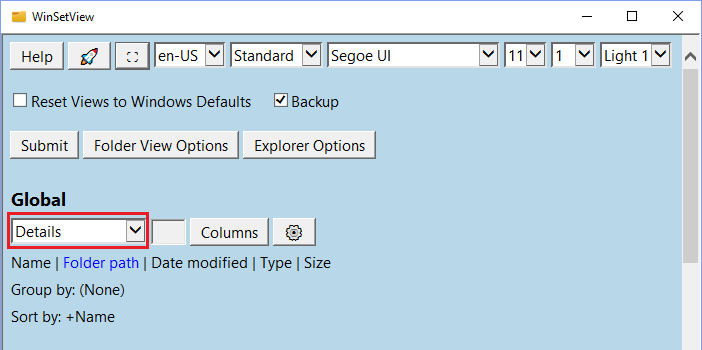
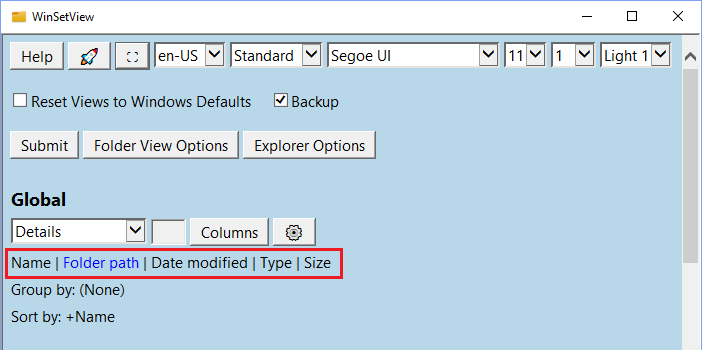
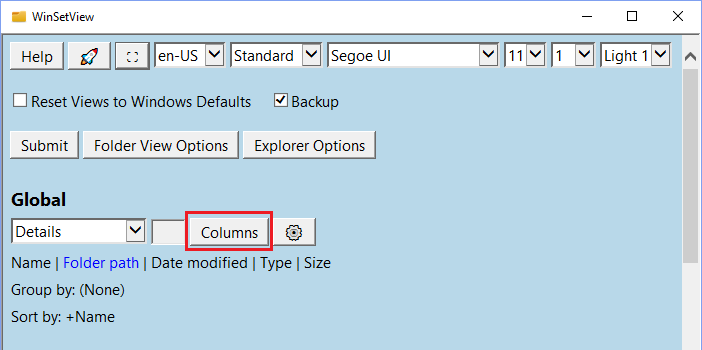
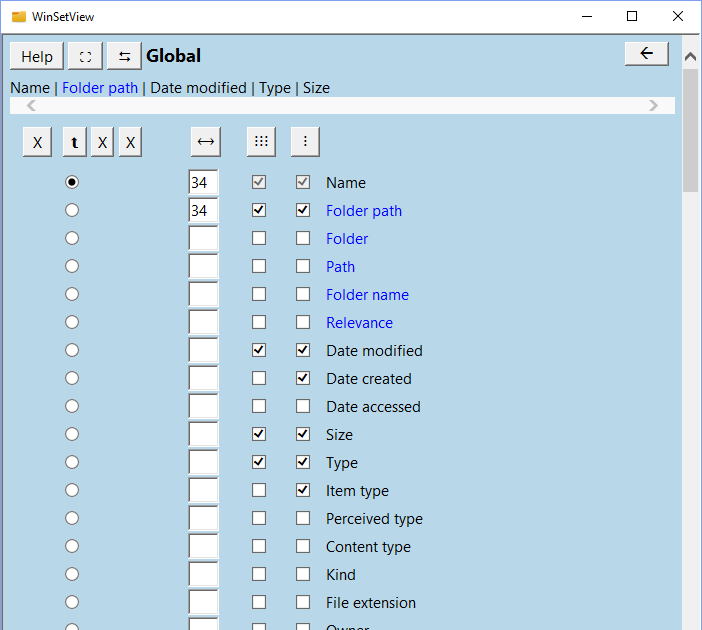
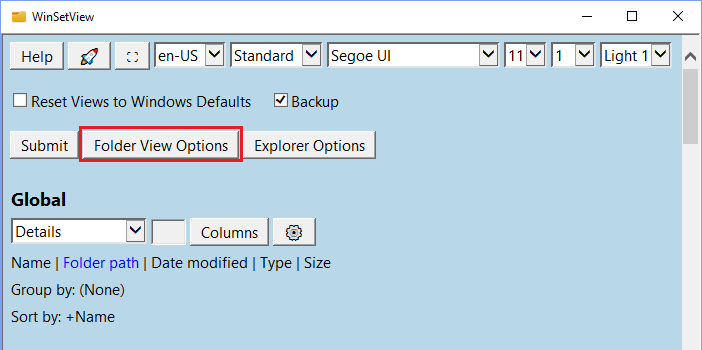
After enabling the folder-definable tool, the first thing to do is to set a global view. In the menu bar that expands from the comprehensive settings at the top of the software page, select "Detailed Information" as the foundation field of view style. Next, check the specific items you need in the column selection area, such as file size, modification date, and file category.
After completing these checks, click the "Submit" button in the dialog box. At this time, the tool will modify the corresponding entries in the system registry and automatically restart the Windows Explorer process to allow the changes to take effect. This global setting becomes the default display template for all folders, unless you specify different rules for specific types of folders.
Customize views for special folder types
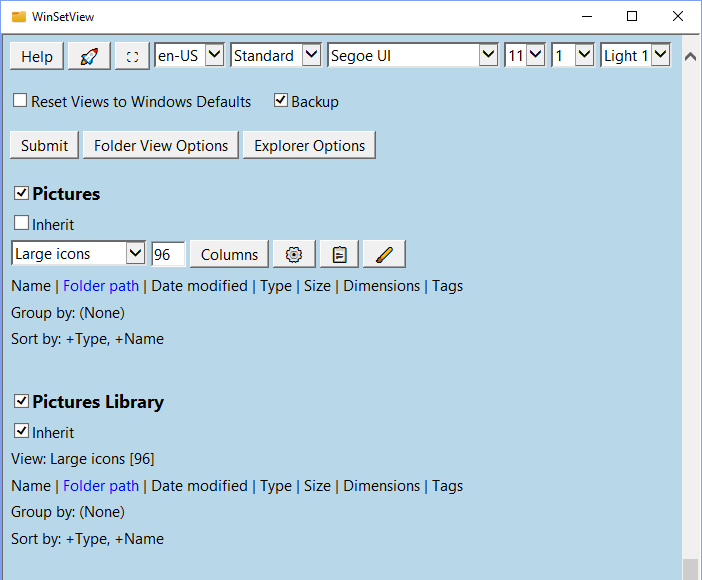
Some specific types of folders may require different views. For example, for the folder named "Pictures" where photos are placed, using the "Large Icon" view will be more intuitive than "Details". Find the settings for the folder type corresponding to "Pictures" in the tool and uncheck its "Inherit from Global Settings" check box.
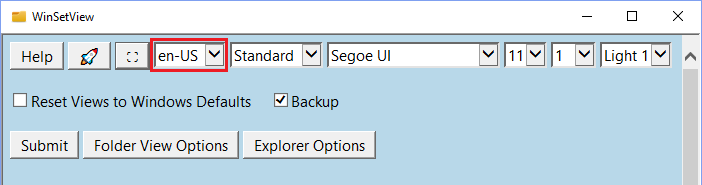
When unchecked, the relevant settings for this folder type actually become independent. Then, just like setting up the global view, you can select the "Large Icon" view specifically for it, and adjust the sorting method to sort in descending order by "shooting date". In this way, when you open the "Pictures" folder in the system next time, it will automatically display the contents in the large picture mode you have set in advance.
Understand the scope of your app settings
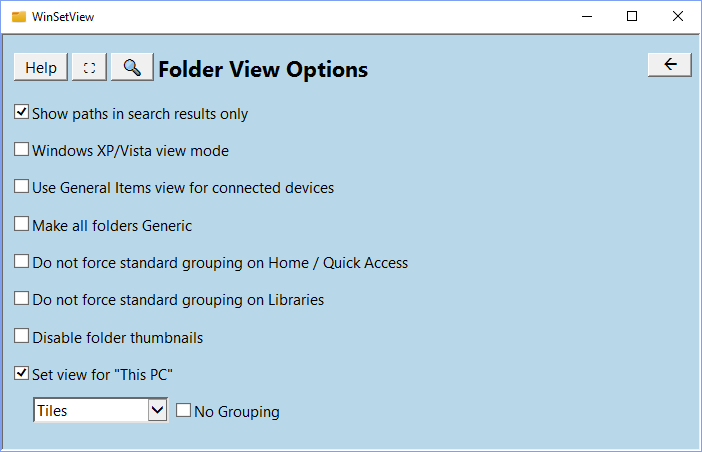
It should be noted that this tool mainly controls the initial view when the folder window is opened, such as icon size, arrangement and displayed columns. It does not directly change the system-level settings in the Windows Explorer "Options" dialog box, such as whether to display hidden files.
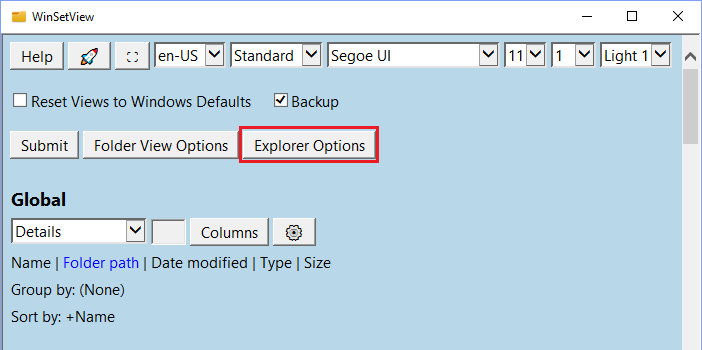
When you find the button called "Submit" on the main interface of the software and click it, the changes applied at this time are mainly focused on the view style. Therefore, if the "Reset" function is enabled in the "Explorer Options" page, it may cause some unexpected interface changes, so it is recommended to carefully check this behavior before proceeding.
Dealing with application distractions
Some applications run in the background and may interfere with updating the folder view. Especially those programs that do not exit after clicking the close button, but are minimized to the system tray, such as some download tools or communication software.
For folder view settings to be applied successfully, you need to exit these programs completely. Generally speaking, you can right-click on their icons in the system tray area, and then select "Exit" or "Close" from the right-click menu. Closing these programs completely prevents them from locking up certain system resources, thereby ensuring that folder view settings are written correctly.
Backup and recovery view configuration
Before making any major changes, it is wise to make a backup. This tool has a backup function. After checking the corresponding options, it will save all your current folder view settings into a backup file.
If you are not satisfied with the view settings in the future, or change to a new computer, you can use the "Restore" function, select the previously saved backup file, and restore the folder view to its previous state with one click. This recovery process will also generally include most of the Explorer options that were adjusted within the tool, helping you avoid the hassle of setting them up again.
Software installation and portability considerations
You can choose to download the installer to deploy this tool, so that it will appear in the system "Application List" and can be easily launched through the Start menu. Another method is to use the portable version, which only needs to be unzipped to a folder (such as the desktop) to run without leaving traces in the system.
However, it should be noted that if the portable version of the software is placed in a system-protected directory such as "Program Files (x86)", it may automatically migrate the configuration files to the user directory. Although this will not affect the use, it will reduce its actual portability. That is to say, there is no way to directly maintain the original configuration on other computers after copying the entire folder to the USB flash drive.
Which unfriendly folder view are you most often disturbed by when managing computer files? Is it that the key information column cannot be found, or that the icons are arranged in a mess?