If you think that the trackpad and mouse that the Mac itself is equipped with and its gestures can already meet the needs of use, it may be because you have not yet experienced the changes in efficiency caused by deep customization.
Functionality beyond system limitations
Apple's MacOS system has preset gestures for the trackpad and mouse. However, these gestures are fixed and cannot be modified or added. This places limitations on many users' operating habits and efficiency needs. For example, some complex, multi-step tasks cannot be triggered with a simple gesture and must rely on keyboard shortcuts or multiple clicks.

The Touchpad Enhancement Tool has emerged, and its purpose is to break this limitation. It allows users to bypass the inherent system settings and create new gesture commands for Magic Mouse, trackpad and other devices. This shows that you can control your Mac in ways that Apple engineers have never imagined and achieve more personalized interactions.
Supports a wide range of devices
This tool is not just for a certain device. It is fully compatible with Apple's recent generations of mainstream input devices, including the first and second generations of Magic Mouse, Magic Trackpad, and even the Touch Bar. For those users who are still using older peripherals, the software can still provide good support.
This huge compatibility ensures that no matter which Apple input device you use, you can get a consistent enhanced experience. It is equivalent to installing a unified "gesture driver" for all Apple external devices, allowing old devices to have new functions and extending the useful life of the hardware.
Depth of gesture customization
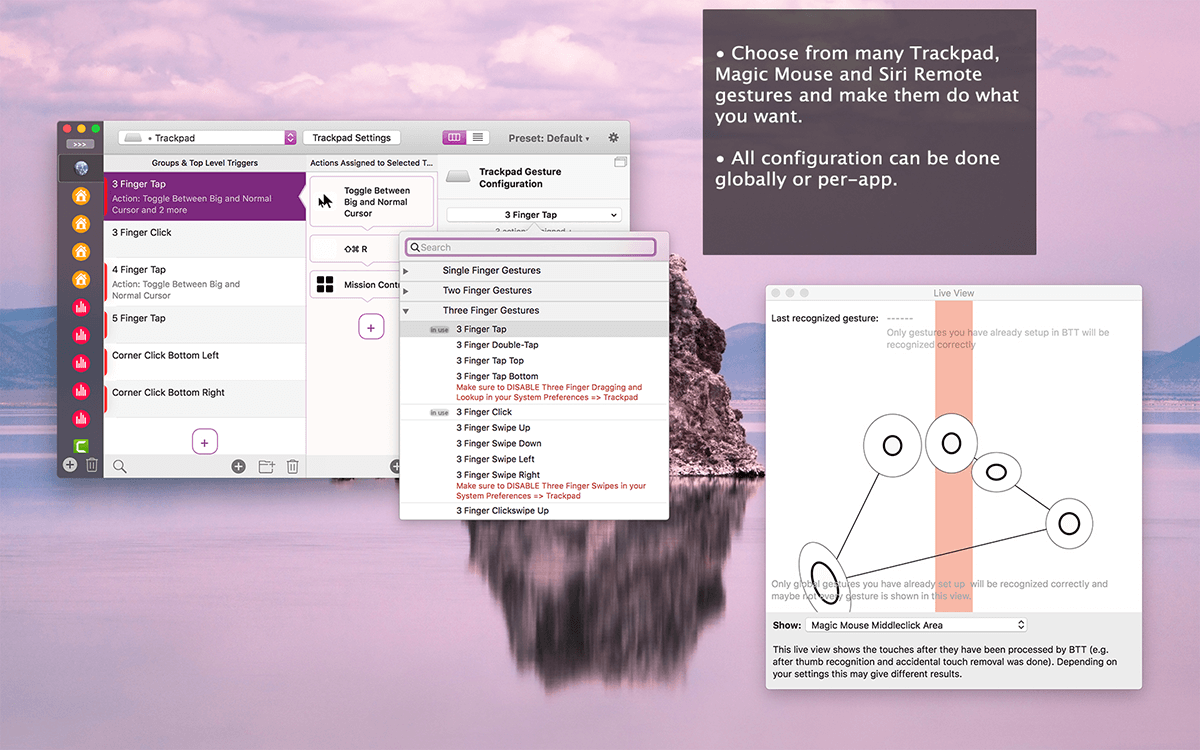
The key point of the software is its highly detailed gesture customization capability. It can not only recognize common single-finger clicks and two-finger swipes, but also taps at specific corner positions of the trackpad, edge slides in different directions, and complex finger pinching and spreading actions. You can set one action for the upper left corner of the touchpad and another completely different action for the lower right corner.
The gesture combinations are also extremely rich, and related operations ranging from single-finger transition to five-finger transition are included. For example, you can set it up to "swipe down with three fingers" to minimize the window, and "pinch with four fingers" to launch an application. This method of gridding the surface of the touchpad and finely dividing areas to define functions greatly expands the physical space for gestures.
Endless possibilities for triggers
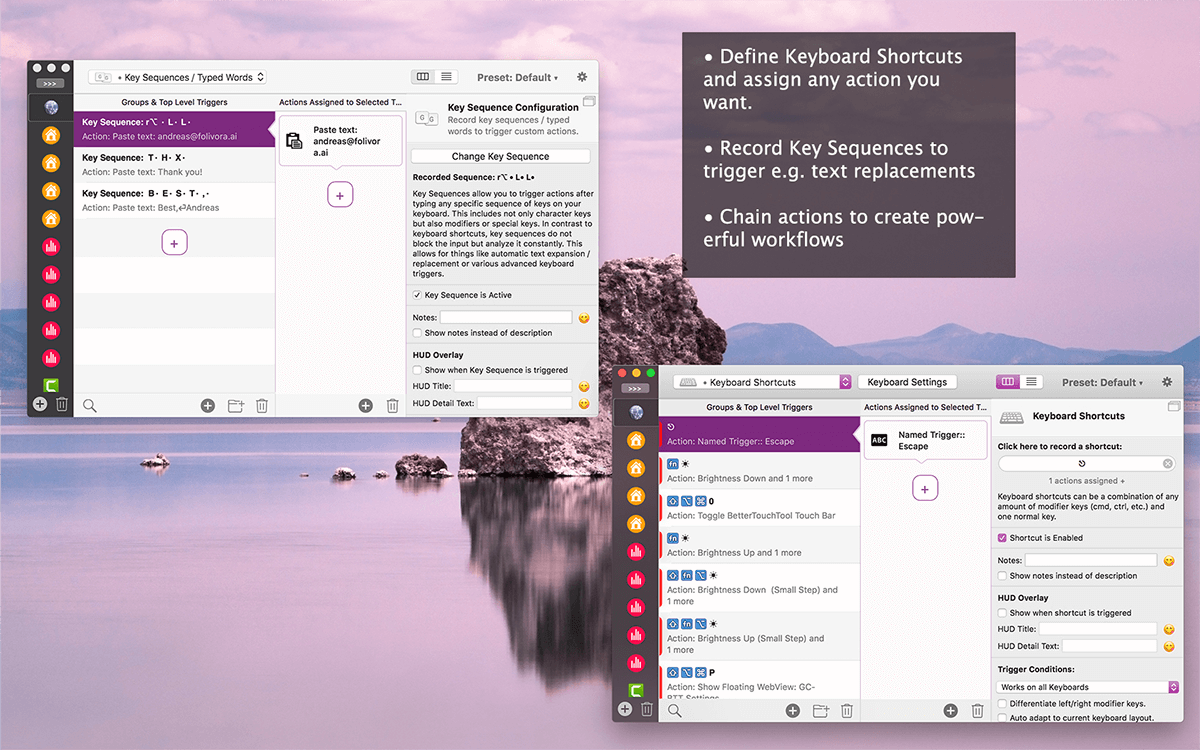
There are various forms of "triggers", including gestures. This powerful tool puts gestures on equal footing with mouse buttons, keyboard keys, and Touch Bar touches, all of which are equally considered triggers. You can use almost any input method to trigger an action you want to perform. In this way, the barriers that exist between different input devices are lifted.
What's more critical is that the list of "operations" that can be triggered is extremely large and continuously updated. The operations include opening files, executing scripts, simulating keys, controlling music playback, and even calling system-level functions. A simple gesture can be associated with a series of complex automated processes.
Action chains and complex automation
A single, simple one-to-one mapping is just the basis. The software has the ability to connect multiple actions to build an "action chain". This means that a gesture can perform multiple tasks in sequence. For example, set a gesture to first save the current document, then add the document as an attachment to a new email, and finally the email sending window will automatically pop up.
This chain reaction design upgrades gestures from simple shortcuts to workflow triggers. It is particularly suitable for dealing with repetitive and multi-step fixed tasks. It condenses manual operations that originally took tens of seconds into a single finger swipe, greatly improving the efficiency of processing complex tasks.
Comes with a productive toolset
In addition to the core gesture functions, such tools are usually bundled with a series of practical tools, such as window management tools, which allow you to quickly attach a window to one side of the screen or resize it using gestures. This is much more accurate and faster than manual dragging, and solves the problem of the inflexibility of Mac's native split-screen function.
What is very useful are the built-in screenshot and clipboard management tools. They do not simply duplicate system functions, but have more annotation options and historical recording functions. These tools are integrated into one software, avoiding the trouble of installing multiple gadgets and presenting a complete productivity enhancement suite to Mac users.
Are you tired of the same system gestures? Which repetitive task on the computer would you most like to accomplish with a custom gesture? If you find this article helpful, please share your thoughts in the comment area. Don’t forget to like and share punctuation marks with more friends in need.