When watching videos on a computer, one of the most annoying things you encounter is that the screen orientation is wrong. The player that comes with Windows does not provide a rotation function. However, don’t give up just yet. In fact, there are several simple ways to successfully solve this problem.
Windows 10 Photos App
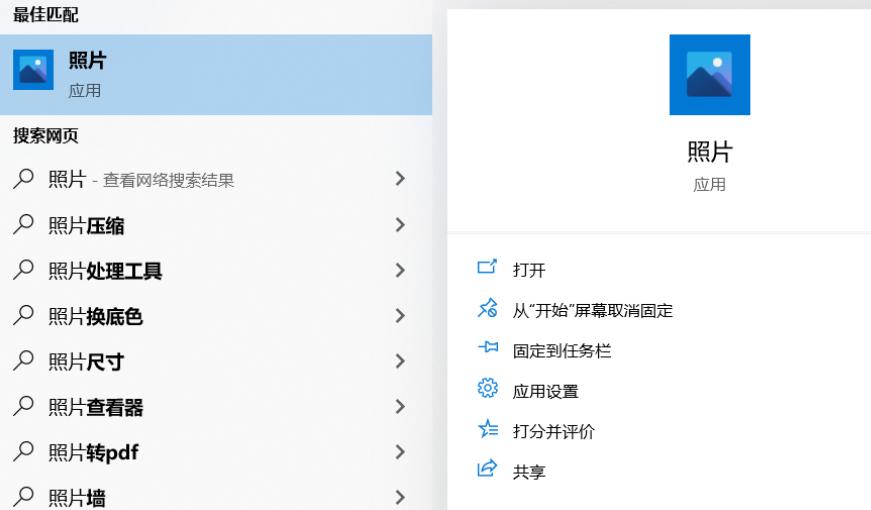
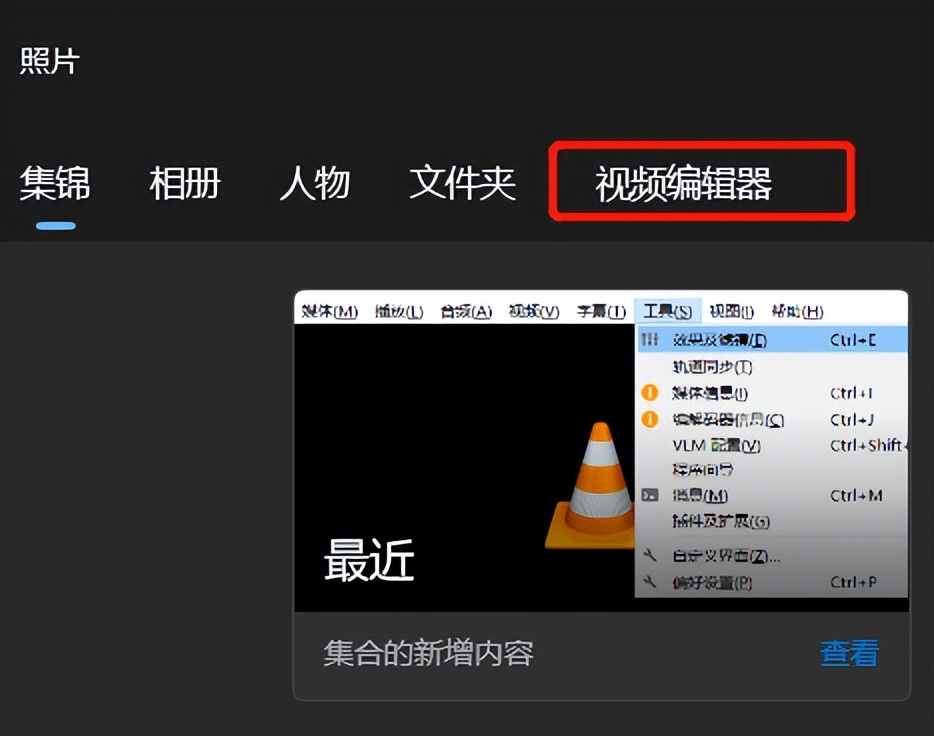
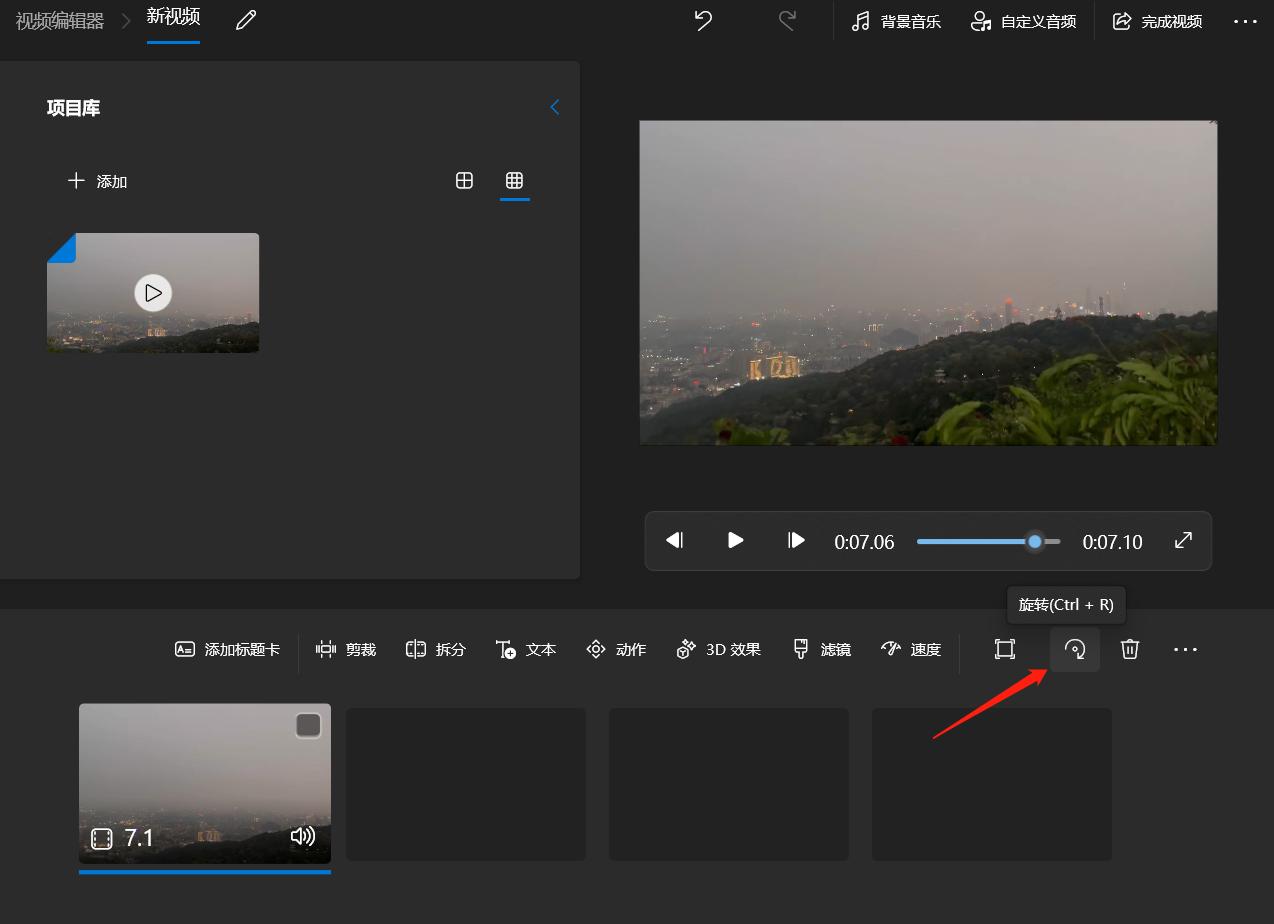
The "Photos" application that comes with Windows 10 system is equipped with a video editor, which can easily rotate videos and save them as new files. First, find and open the "Photos" application in the start menu, then tap the "New Video" or "Video Editor" button in the upper right corner to create a new project.

Then click "New Video Project", give the project a name, and click the "Add" button to select the video file with the wrong orientation from your computer folder. After the file is added, it will appear on the editing timeline, ready for rotation.
Steps to use photo app rotation
When you select a video clip to be processed from the timeline, a spin icon will be displayed on the toolbar at the top of the editor, which is usually a round button with an arrow. Click this icon, and the video will rotate 90 degrees clockwise each time. You can click multiple times until the direction of the picture becomes correct.
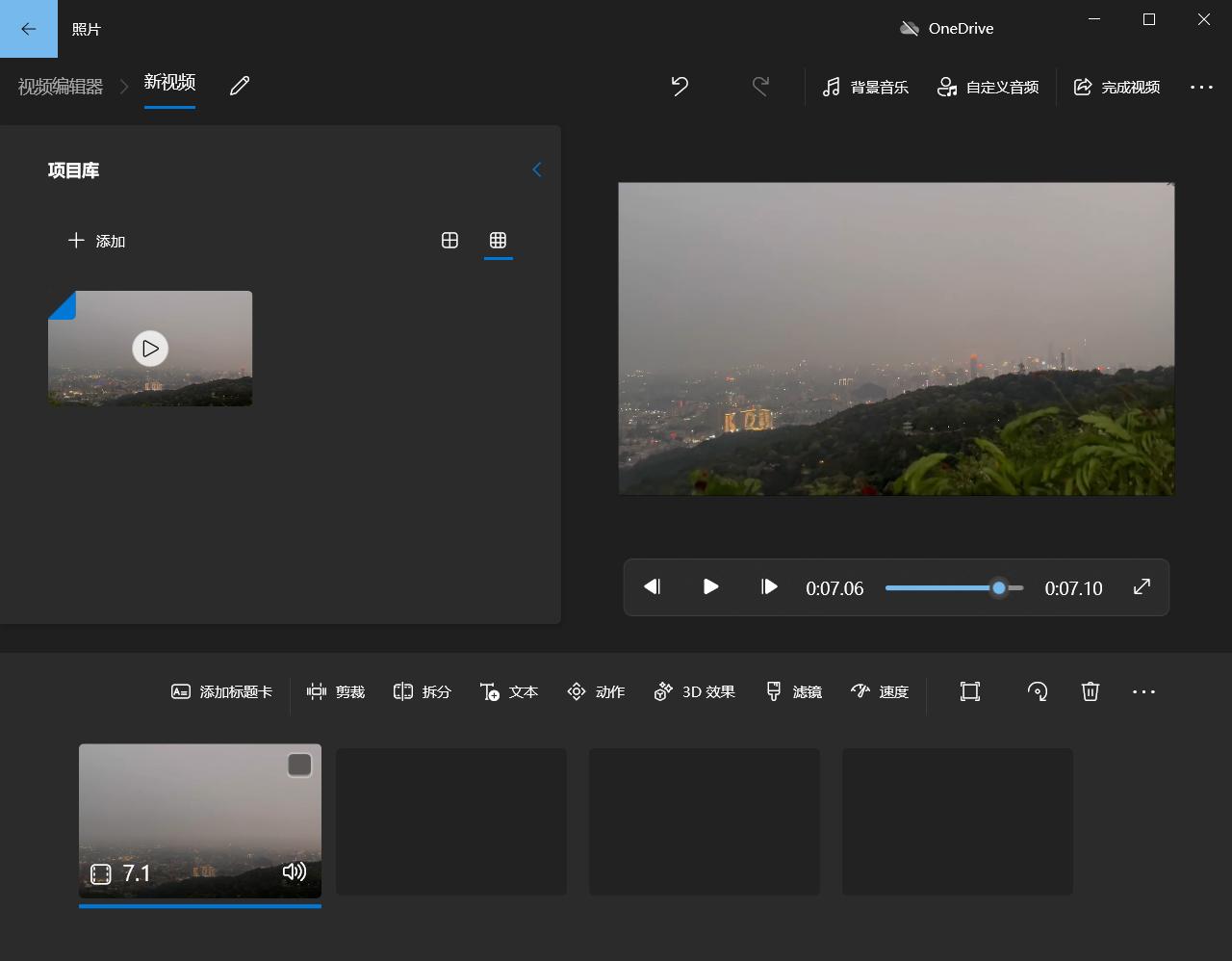
After rotating and adjusting to a satisfactory state, click the "Complete Video" or "Export" button in the upper right corner. The system will prompt you to select the video quality, then select the save location, and click Save to generate a new video file with the correct orientation.
VLC player temporary rotation
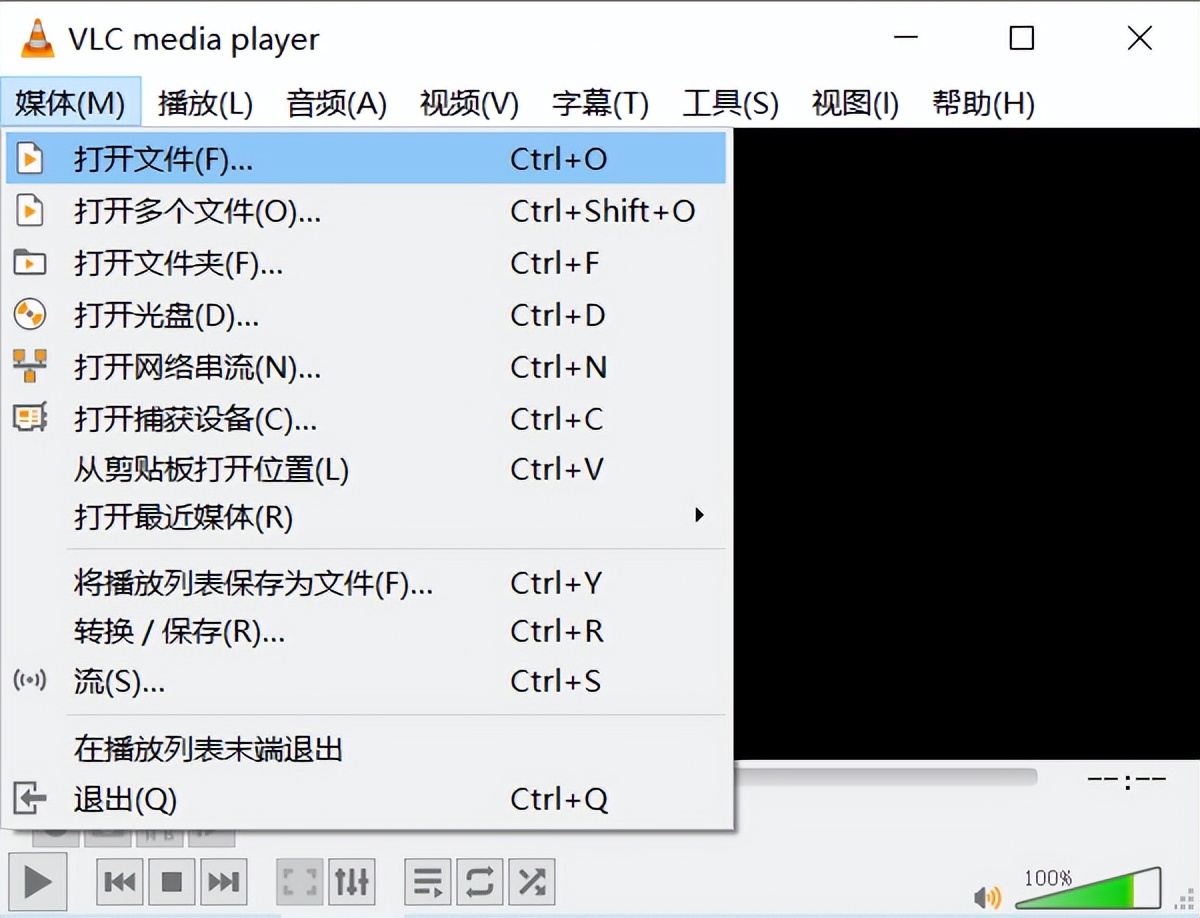
If you install the free VLC media player, it can temporarily rotate the video playback angle, but this will not cause permanent changes to the original file. After opening VLC, click "Media" on the top menu bar and select "Open File" to import the video.
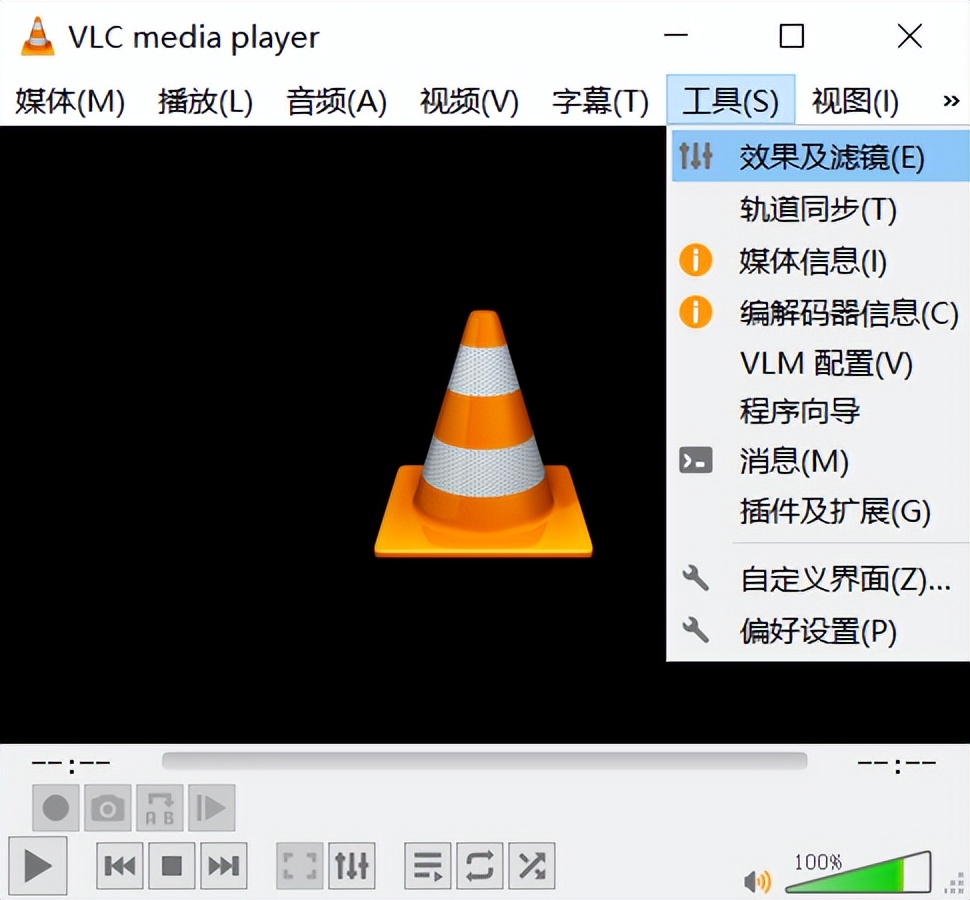
After the video starts playing, click "Tools" in the menu bar and select "Effects and Filters" from the drop-down list. This operation will open a settings window and in this window, you have to find the "Video Effects" tab.
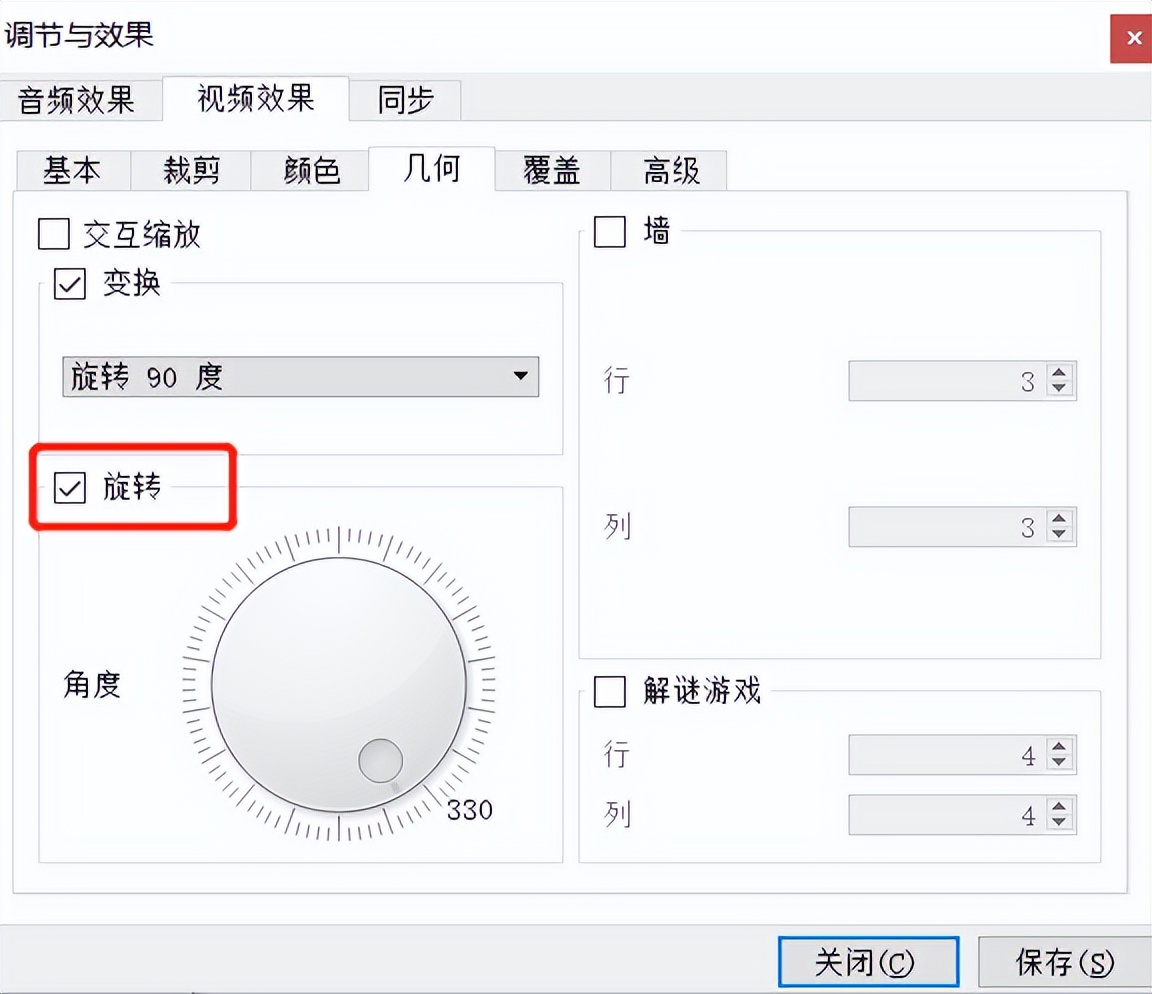
VLC rotation setting method
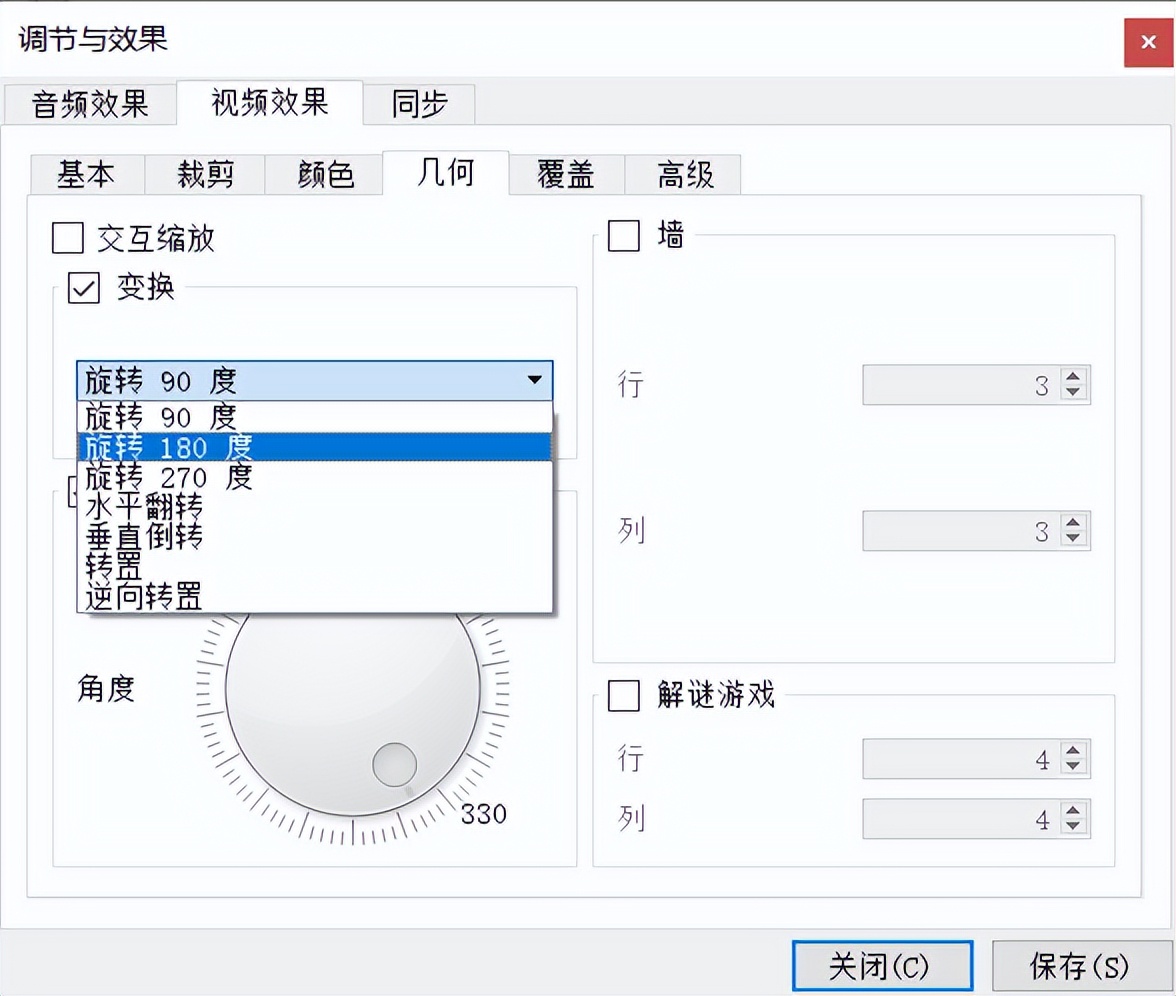
In the "Video Effects" tab, look for and check the "Geometry" option, and more settings will expand below this. Then check the "Rotate" checkbox, and a drop-down menu for angle selection will appear on the right side of it. This menu provides fixed angles such as 90 degrees, 180 degrees, and 270 degrees.
After selecting the angle of rotation you require, click the Close button at the bottom of the window. At this moment, the video screen in the VLC player will be displayed according to the angle you set. However, this rotation effect only works during this playback. After closing the player, it will still return to its original appearance next time it is opened.
Golden Lion Video Assistant Permanent Rotation
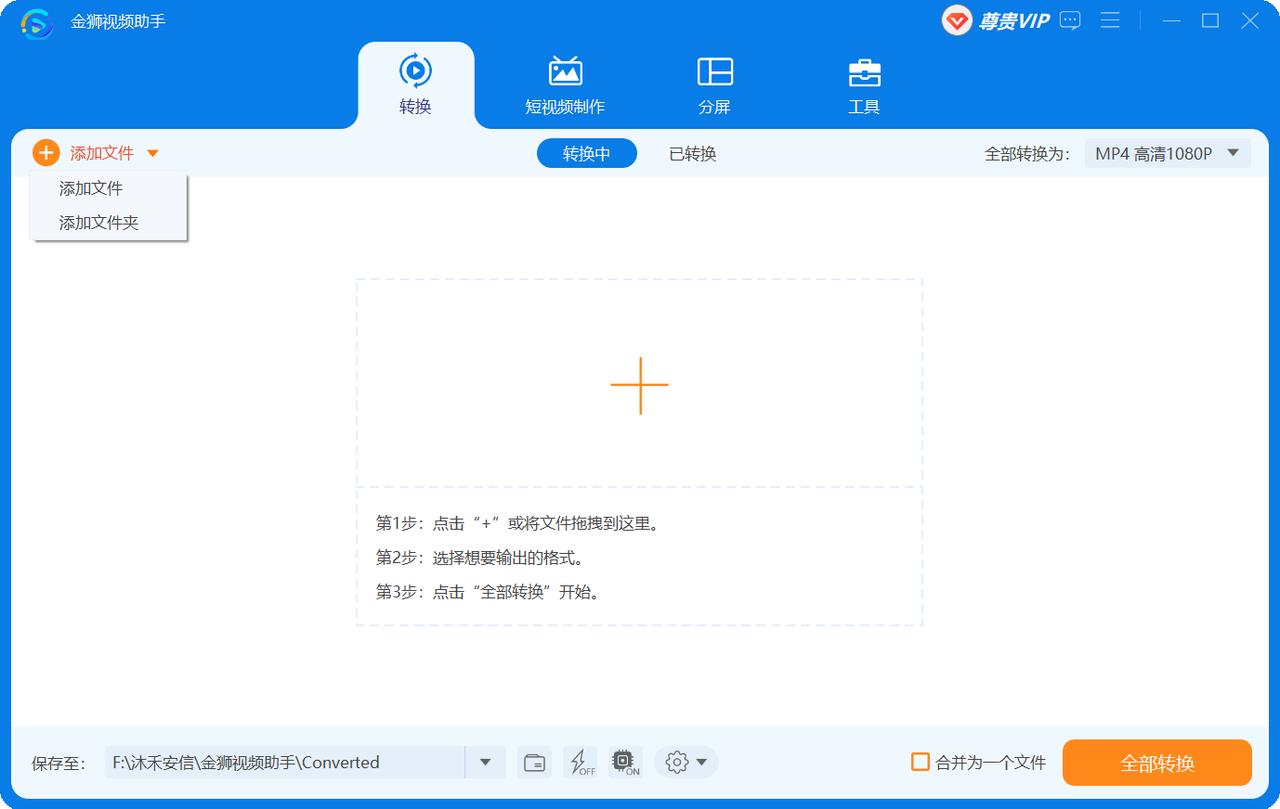
If you want to use a special tool for permanently changing the direction of a video and then saving it as a new file, you can use special video processing software, for example, software like Golden Lion Video Assistant. You can download and install the software on its official website. It supports both Windows and macOS systems.
After the installation is complete, open the software and click the "Add File" button on the main interface, or directly drag the video file into the software window. The software supports a variety of common formats, such as MP4, MOV, AVI, etc.
Golden Lion Video Assistant Operation Process
After the file has been added, find it in the list and click the "Edit" button next to it, usually a pencil icon. In the pop-up editing window, you will see clear rotation options, which cover rotating 90 degrees clockwise, rotating 90 degrees counterclockwise, flipping horizontally, and flipping vertically.
After selecting the desired rotation operation, click "OK" to return to the main interface. You can also set parameters such as format and resolution before outputting, and finally click the "Convert All" button, and the software will process and export a new video file with the correct orientation.
When you process vertical videos captured on mobile phones, what kind of orientation problem do you most often encounter? Is it an upside-down situation, or a left-right mirror image? You are welcome to share your own experiences in the comment area. If you think these methods are quite effective, please also give a like to support them.