
As far as remote printing is concerned, it is actually a thing that facilitates laziness. You think you can save the time of downloading and uploading in those few steps, but after struggling for a long time to install the driver and configure the network, you finally find that it is not as smooth as directly copying it with a USB flash drive. But when you gradually get used to printing by raising your hand, and one day you suddenly cannot use it, you will realize that this thing has been embedded in your workflow to the extent that it is inseparable.
Printing is actually the same as drawing.
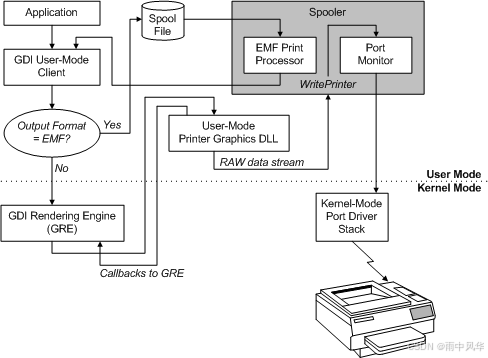
The way Windows handles printing is essentially the same logic as when you use drawing software to draw on the screen. Programmers write code to call GDI functions, whether it is output to the screen. Or put content into the printer. All use the same set of drawing instructions. The difference is only reflected in the difference in the "drawing board" target you create. One of them is the monitor DC. The other is the printer DC.
That shows that, from a theoretical level, as long as you have the ability to write the interface, you can almost operate the printer. The system completes a lot of complicated and hard work for you in the background, recording all those lines, color blocks, and text and saving them in an intermediate format, which is an EMF metafile. This file is like a draft, recording all your drawing actions, but the stupid object of the printer cannot read it at all.

There is a butler specializing in translation hidden in the system
To make the printer understand the content you want to print, there is a core service in Windows called Print Spooler, which is a print spooler. It is like a big housekeeper, arranging all printing tasks and then handing them over to a dedicated "translator", that is, the print processor. This processor is responsible for converting common formats such as EMF and TEXT into RAW data that can only be understood by the printer's mother.
The conversion process is quite complicated. The system needs to call the kernel-level GDI function and find the corresponding GPD data configuration file based on the printer driver you installed. This file is the printer's "instructions", telling the system what languages the printer supports, how the paper advances, and how the ink cartridges are ejected. Different brands of printers may have completely different RAW data formats. HP uses PCL, while Adobe may use PostScript.
The print data is finally sent out at the port
After the RAW data is translated, it is passed to the print port monitor. This is the last node where the data stops at the application layer. It then enters the kernel driver via USB cable, network cable or Wi-Fi, and is finally sent to the physical printer hardware. The entire chain is tightly interlocked, and as long as there is a problem with any joint, the printer will be unresponsive to you.
Interestingly, this port monitor is actually a good place to "steal data". If you write your own port monitor program, you can intercept the data before it is sent and save it as a file. This is the principle of many virtual printers intercepting RAW printing data. Although it is simple and straightforward, the effect is significant.
Three evil ways to create a virtual printer
The first is to replace the print processor. In the MBTI career test in the WDK development package officially provided by Microsoft, there is a sample source code of the print processor. You can modify it and get the print data in functions such as OpenPrintProcessor . The obtained data may be in EMF format. The sample code has a bunch of existing functions to help you convert it into other formats, saving a lot of work.
The second type is the port monitor mentioned just now. This item intercepts completely pure RAW data, which is the closest to what the printer understands. The third and most difficult method is to achieve the User-Mode Printer DLL, which is the printer drawing DLL. You need to implement a complete set of drawing callback functions by yourself to process each drawing instruction, just like writing a graphics card driver. Not an expert, so don't try it easily.
Just piece together a GPD file and use it as a driver
In fact, to create the simplest virtual printer, you don't need to write the code yourself from the beginning. In the print directory of WDK, there are a large number of ready-made GPD data description files, and of course INF configuration files. You can choose one of them at will, modify the name and port settings, and install it into the system. In this way, a printer driver is born. When other programs select this printer to perform printing operations, the data will flow obediently toward the local file you configured.
If you want a more advanced approach, such as converting printed results into PDF format, then look for a ready-made PCL to PDF command line tool. After the data is implemented, the tool will be automatically called for conversion, and a complete virtual printing solution will be completed. The whole process is indeed as mentioned at the beginning . It is completely pieced together, but the pieced together can indeed be used normally.
If you want advanced functions, you have to write your own DLL
Of course, if you just want to generate BMP images, there is a ready-made example in WDK called "MSXPS" or "RASTER". After compiling, installing and printing, you can get image files one by one in the specified directory. This is actually extended from the third version of the GDI print driver, and can be regarded as an entry-level method of virtual printing.
If you want to achieve more unique behavior, such as adding watermarks to printed content, counting the number of printed pages, or blocking sensitive words, you need to implement the printer DLL plug-in yourself. This requires an in-depth understanding of the various instructions in the GPD file and the specific details of the PCL language. However, once completed, your virtual printer will be upgraded from "available" to "good user experience".
After reading this, have you ever thought about how, behind the simple touch of the print button, there are so many system components working in conjunction with each other? Do you think the hardest part when putting together a virtual printer is writing the code, or figuring out how the components relate to each other? Welcome to share your opinions in the comment area. If you find the article valuable, please give it a like and share it with friends in need.