Many people want to display the content on their mobile phones or tablets on the large screen of their computers, but they don't know how to do it. In fact, whether you are using the newly launched Win11, the mainstream Win10, or the classic Win7, these systems all have built-in convenient and fast wireless screen mirroring functions, which can be easily accomplished with a few simple settings.

Setup steps for Win11 system
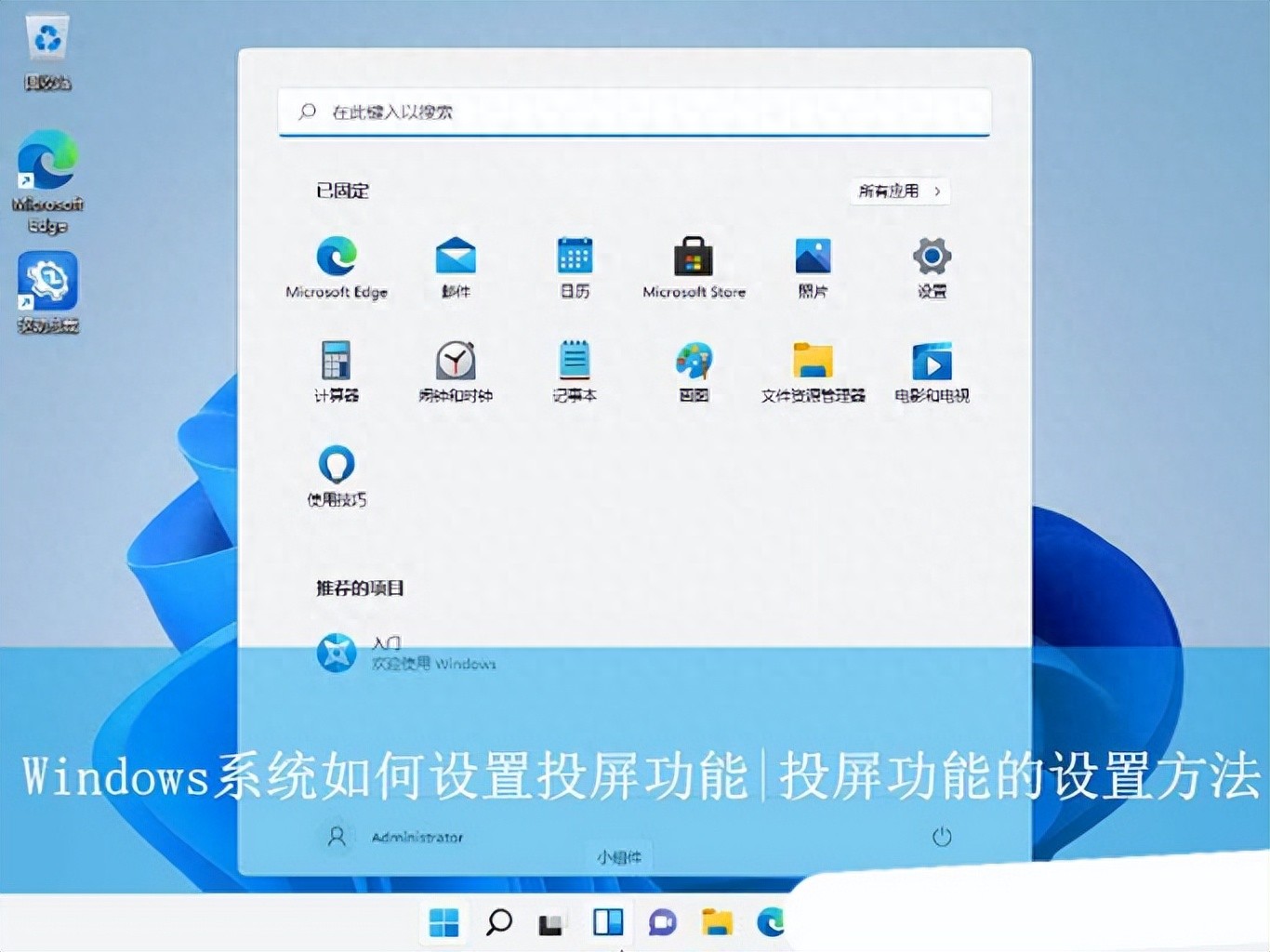
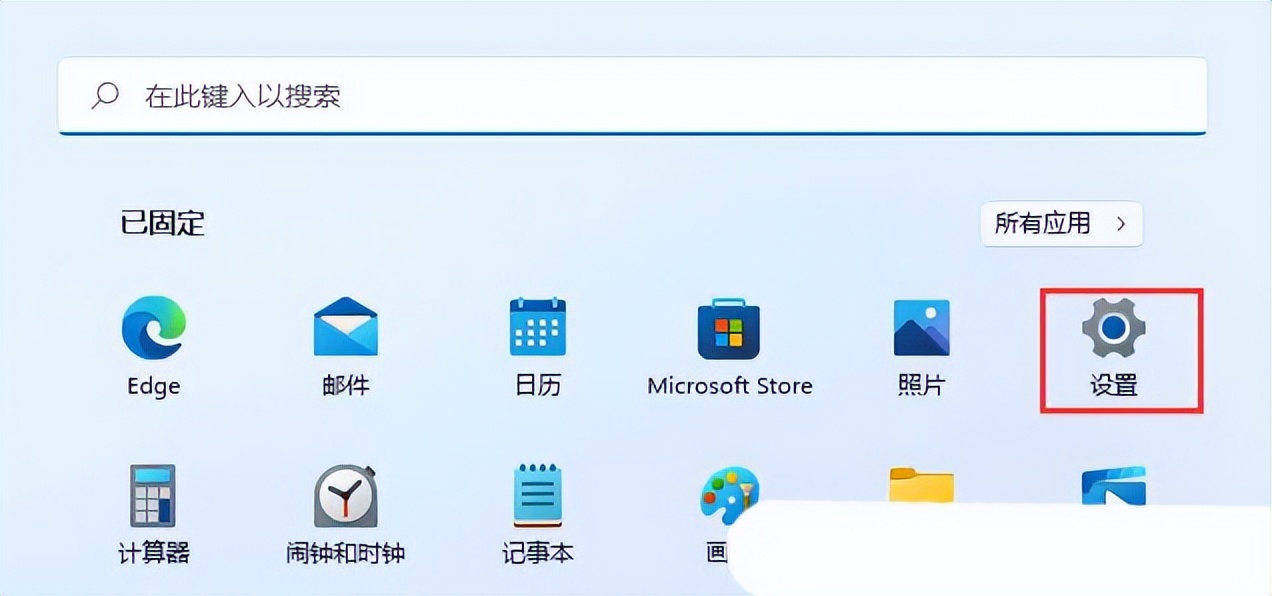
In Windows 11, the wireless screen mirroring function is integrated into the system settings. You have to first tap the Start menu icon in the lower left corner of the screen, or press the Win key on the keyboard, find and open the "Settings" application in the menu that appears.

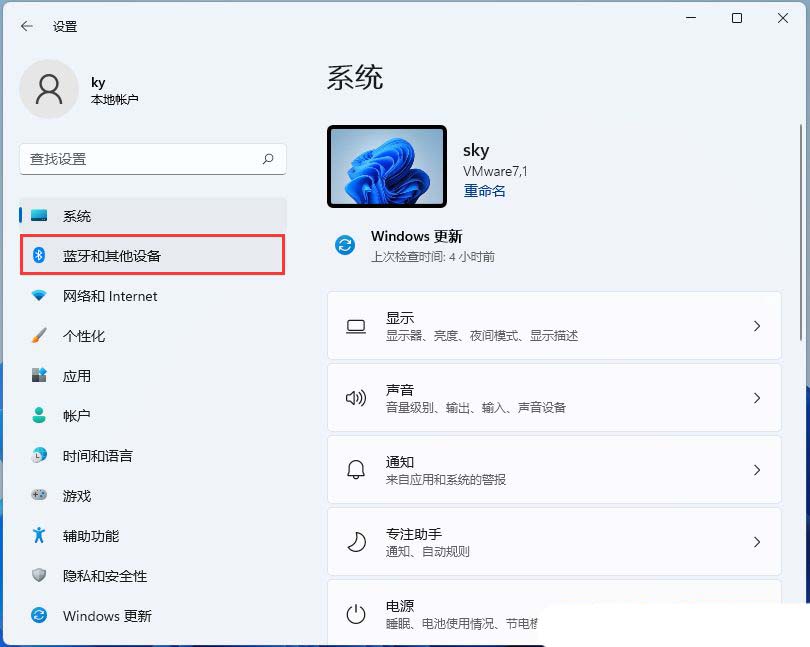
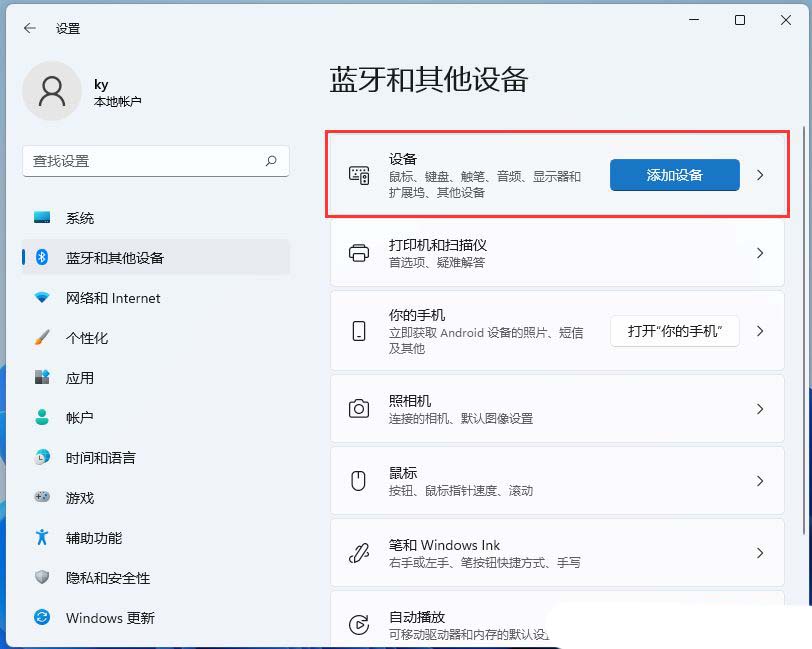
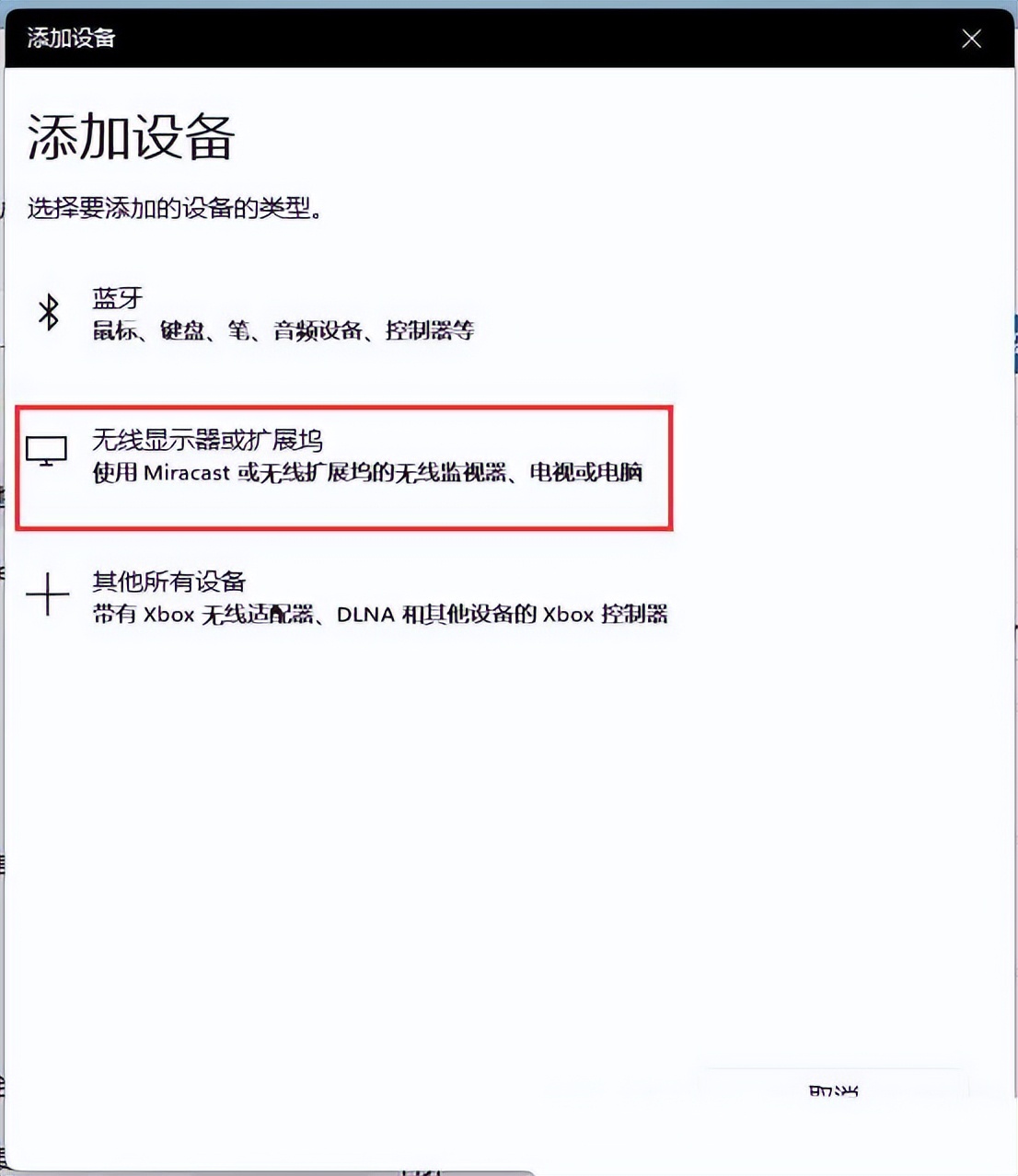
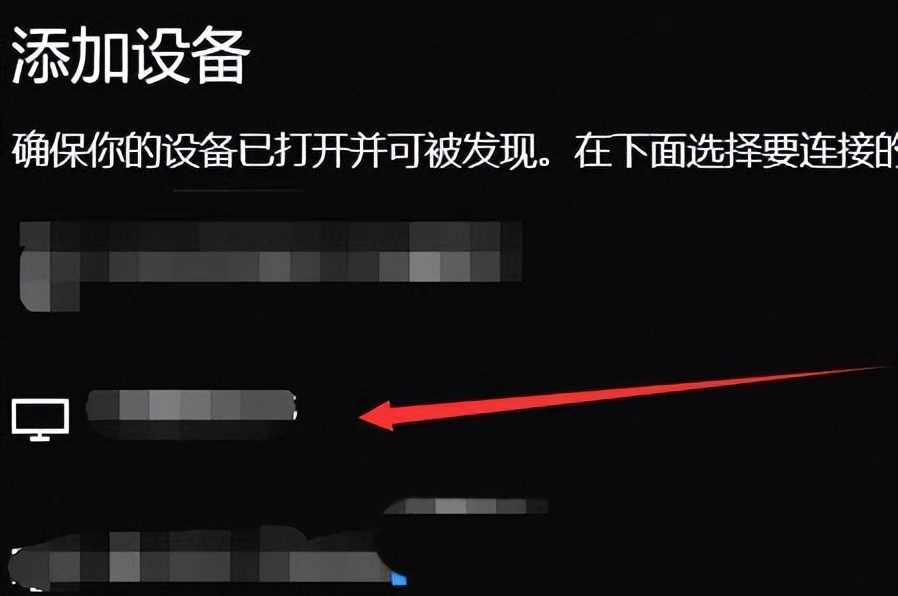
After entering the settings window, switch the left sidebar to the "Bluetooth and other devices" option. On the right side of the page, you can clearly see the blue button "Add Device". Click this button to start searching for available wireless display devices nearby.
How to connect to Win10 system
For users using Windows 10, the fastest way is to click the chat icon or notification bubble in the lower right corner of the screen through the notification center on the taskbar, then open the notification panel, find and click the "Connect" option at the bottom.
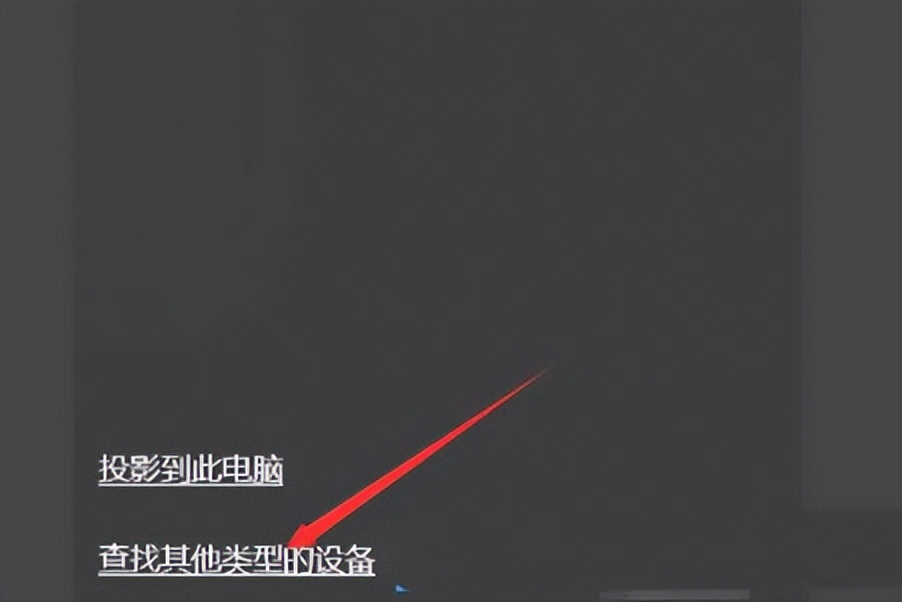
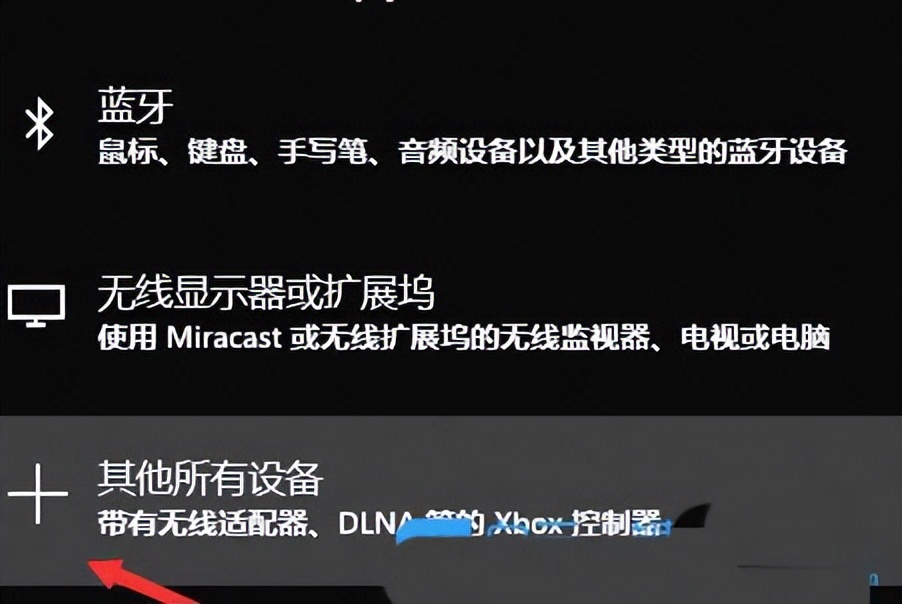
If you don't see "Connect" in the shortcut panel, you may have to click "Expand" first. After entering the connection interface, the system will automatically search for devices that can cast the screen. If you can't find it, you can try clicking "Find other types of devices" to broaden the search scope.
Preparation and configuration of Win7 system
The difference is the operating logic of the Windows 7 system, which requires network environment configuration first. First open the Control Panel, enter the settings of "Network and Internet", and then click "Network and Sharing Center".
Next to the name of the currently active network connection, click the words "Public Network." Select "Home Network" in the pop-up window, then turn on the "Media Streaming" function, and check the option to allow remote control of the device to complete the basic settings.
Ensure a consistent network environment
No matter which version of the system is used, the prerequisite for successful screencasting is that the device is in the same local network, which means that your computer and mobile phone must be connected to the same WiFi router, which is the basic element for devices to be able to discover and communicate with each other.

If the connection fails, you must first check the network. You can try to restart the router, or temporarily turn off the computer's firewall software. Sometimes, the security policy of the public network will prevent the devices from interconnecting. If you operate in a home or office private network environment, the success rate will be higher.
Adaptive display for horizontal and vertical screens
After the connection is successfully achieved, the screen displayed will rotate automatically according to the direction of the signal source device. When you hold your phone vertically, the screen of your computer will appear in a vertical screen; if you turn your phone horizontally, the screen on your computer will also turn into a horizontal screen simultaneously.
This feature is especially useful when watching vertical videos or browsing documents. However, some earlier or non-official screencasting protocols may not support automatic rotation. In this case, you need to lock the screen orientation on the mobile phone, or check the display settings of the receiving computer.
Frequently Asked Questions and Troubleshooting Ideas
If you still can't find the device after following the steps, perhaps the computer's wireless network card driver is too outdated. You can visit the computer brand's official website or the motherboard manufacturer's website to download and install the latest wireless network driver.
Another common reason is that the system service is not turned on. Press the Win key and the R key at the same time, enter "services.msc" to open the service manager, look for services such as "Windows Media Player Network Sharing Service", and ensure that its startup type is "automatic" and is already running.
What do you most often use your mobile phone to mirror to your computer? Is it for office presentations, watching videos, or playing games? You are welcome to share your usage scenarios in the comment area. If you find this guide helpful, please support it by giving it a like.