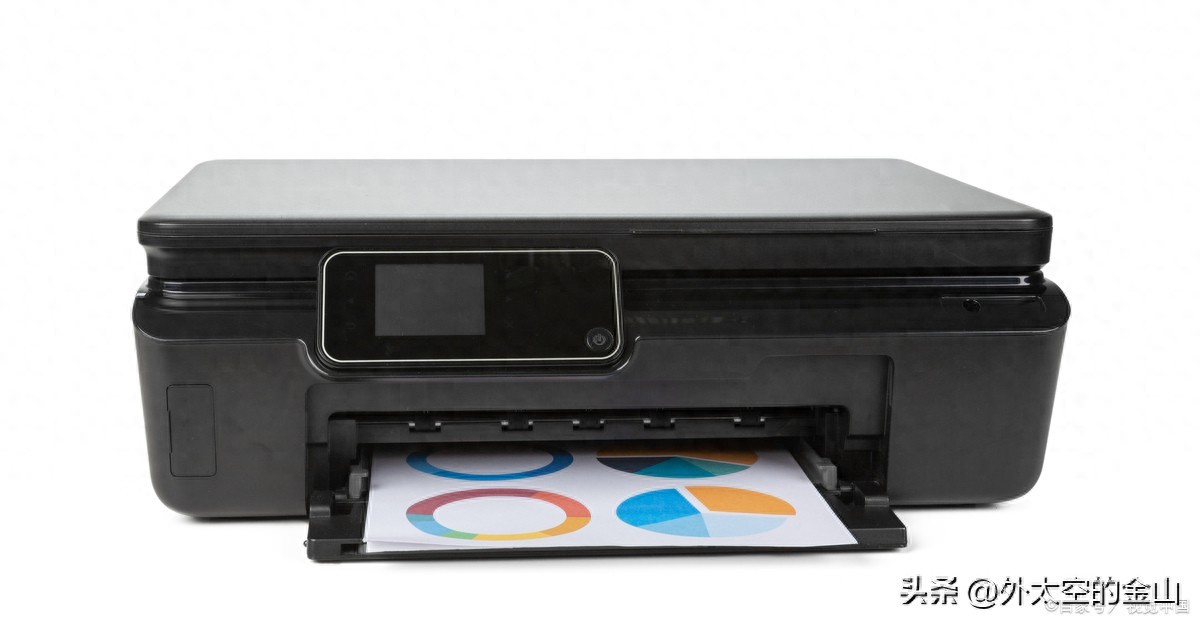
Every time you perform a printing operation, you have to select a printer again, which is time-consuming and prone to errors. Especially when there are multiple devices in the office, this kind of trouble is encountered almost every day. Setting a default printer is one of the simplest and most effective ways to improve daily office efficiency.
Why you need a default printer
The number of printers in homes is increasing day by day, and the number of printers in offices is also increasing. It is extremely common for personal computers to be connected to multiple devices at the same time. Whenever printing is performed, a selection window will pop up, thus interrupting the train of thought at work. For those positions that require frequent printing of documents, such as financial positions or administrative positions, the accumulated time loss of manual selection is considerable.
After adjusting to the default printer, all print tasks will be sent to the designated device by itself. This prevents emergency documents from being mistakenly printed to printers in other departments or departments. For new employees or elders in the family who are not very proficient in using computers, the simplified process can reduce their confusion and operation errors.
Set up on Windows system
In Windows 10 or Windows 11, click on the Start menu, then open "Settings", then enter the "Bluetooth and other devices" option or choose to search for "Printers" directly. In the "Printers and Scanners" page, you can see a list of all connected printers. Click on the target printer and select "Manage".
In the management page, find and click the "Set as Default" button. A common situation is that new versions of Windows turn on the "Let Windows manage my default printer" option by default, which causes the system to set the most recently used printer as a temporary default. If you want to fix one device, you need to turn off this function on this page.
Set up on macOS system
Users who use Apple computers can click on the Apple menu in the upper left corner of the screen, then enter the option called "System Settings", find and click on the "Printers and Scanners" option in the sidebar of the settings, this window will list all printers added via USB or network.
From the list, click on the printer you want to use frequently. Typically, a drop-down menu option called "Default Printer" will appear on the right. Click this option and select "This printer" from the list to set it as the fixed output port for all print jobs.
Precautions for network printers
Network printers are widely used in offices today. Before setting this type of printer as the default device, you must ensure that your computer and the printer are in the same LAN, and that the printer IP address is correct. Network fluctuations may cause the printer to go "offline", making it impossible to set it as the default.
If it involves a corporate network printer that requires authentication, you may have to enter accurate credentials. Once the office Wi-Fi is changed, or the printer server address is changed, the original default settings will become invalid. At this time, you need to find and add the correct printer driver again.
Frequently Asked Questions You May Encounter
Sometimes, you will find that the "Set as Default" button is gray and cannot be clicked. This situation, this situation, generally speaking, is because the printer driver is not installed correctly, or the printer status is displayed as "offline". Check the printer power supply and connection cable, and reinstall the official driver. Generally speaking, the problem can be solved.
Permissions issues may also cause setup to fail. Especially on computers used by the company, if you do not have administrator rights, it is very likely that you will not be able to make changes to the default printer settings at the system level. At such moments, you need to contact the IT department for assistance in handling it, or log in with an account that has permissions.
Tips for keeping your settings working
It's a good idea to make it a habit to check the status of your default printer regularly, especially after a major system update or the installation of a new printer. To prevent confusion, it is recommended that you give the printer connected to your computer a name that is easily identifiable, such as "Finance Department Color Laser Printer."
If you often work in different places, such as using the same laptop at home and at work, you can consider creating different hardware configuration files, or remember two sets of print settings and manually adjust the default printer when switching environments. This is less troublesome than having to select it every time you print.
Are you currently using a fixed default printer, or are you letting the system pick the most recently used device? Share your setting habits in the comment area. It may be helpful to other friends who encounter similar problems. If you find this article useful, please like it and share it with people who may need it.