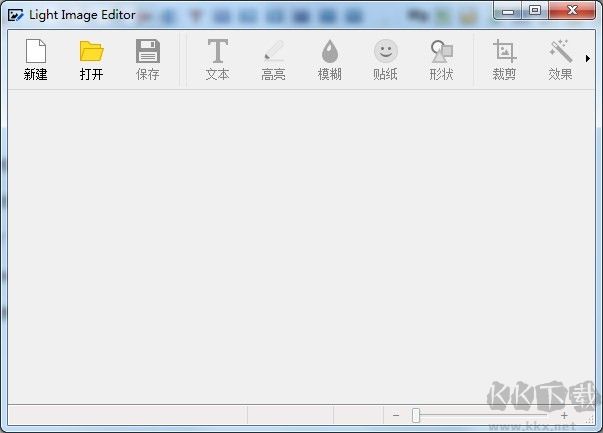
Batch editing software can improve efficiency, but finding a tool that is practical and has comprehensive functions is not an easy task.
Core functions and applicable scenarios
The key advantage of Light Image is that it can perform batch processing. It can carry out unified editing work on dozens or even hundreds of photos at the same time, such as adjusting the photo size, converting the photo format, or adding watermarks to the photos. This saves the tedious steps of repeatedly opening the photos, operating on the photos, and saving the photos.
This makes it extremely efficient in specific scenarios. Whether e-commerce practitioners want to uniformly process the main images of products, or ordinary users pack up many photos after returning from travel, the batch function can compress hours-long work to within minutes.
Main function introduction
The batch functions provided by the software are quite comprehensive. In addition to common size adjustment and format conversion, it also includes batch renaming, batch rotation, batch application of filters and other related operations. These functions basically cover the basic needs of image management.

Within the scope of file formats, it has the ability to convert between various mainstream types such as JPEG, PNG, GIF, BMP, etc. This is extremely convenient for users who need to publish images on different platforms, without having to look for additional conversion tools.
Software acquisition and startup
The Chinese version of this software is generally provided in the form of a compressed package. After users download it from the Internet, they must first unzip it to a local folder on their computer.
There is no installation operation required when starting the process. In the folder obtained after decompression, look for an executable file with the .exe suffix. Double-click it to directly run the software. This avoids problems such as bundling software or modifying system settings that may be encountered during the installation process.
Key operational settings
The software provides some practical settings during batch processing. For example, when performing the format conversion operation, you can select a configuration file named "Convert Only", so that the original size and other parameters of the image will not be changed.
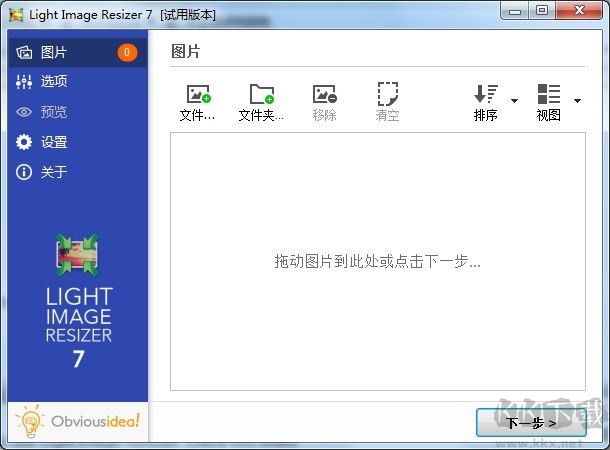
There is a practical function that retains the date information of the original file. When processing historical photos, this is beneficial to maintaining the original timestamp of the file to facilitate subsequent search and management.
Performance and system requirements
Computer hardware does not have high requirements for software. The official recommendation is that the hard disk must have at least 500MB of free space. This is mainly to store the software itself and temporary files in the processing process. There is a reason for this.
It is a green and portable software that does not write a lot of registry information into the system, and uses relatively little memory and CPU when running. It can run smoothly on ordinary computers in recent years.
Usage tips and precautions
First, develop a good habit of backing up when using it. Although the software will create a backup by default when overwriting a file, it is safer to manually copy the original image and place it in another folder.
Before you start processing a large number of images, it is recommended to select one or two images to test the effect. Make sure that the adjusted parameters, such as the scaling ratio, the location of the watermark, the quality of compression, etc., are in line with expectations before starting a full batch operation to avoid errors.
Regarding the most common requirements for large-scale operations that you encounter when processing images, you are welcome to share your experiences in the comment area. If you feel that this article is helpful, please also give a like to show your support.