Many people think that to maintain different computer systems, they need to prepare many different USB flash drives, which is complicated and easy to get confused. In fact, with the help of current tools, a single USB flash drive can meet the maintenance requirements of both Linux and Windows platforms.

Advantages of multi-system boot tools
There are many open source tools currently on the market that can achieve this goal. They generally support the two mainstream boot modes of BIOS and UEFI, which means that whether your computer is an old machine with a history of ten years or the latest model, the boot USB flash drive can basically be recognized.
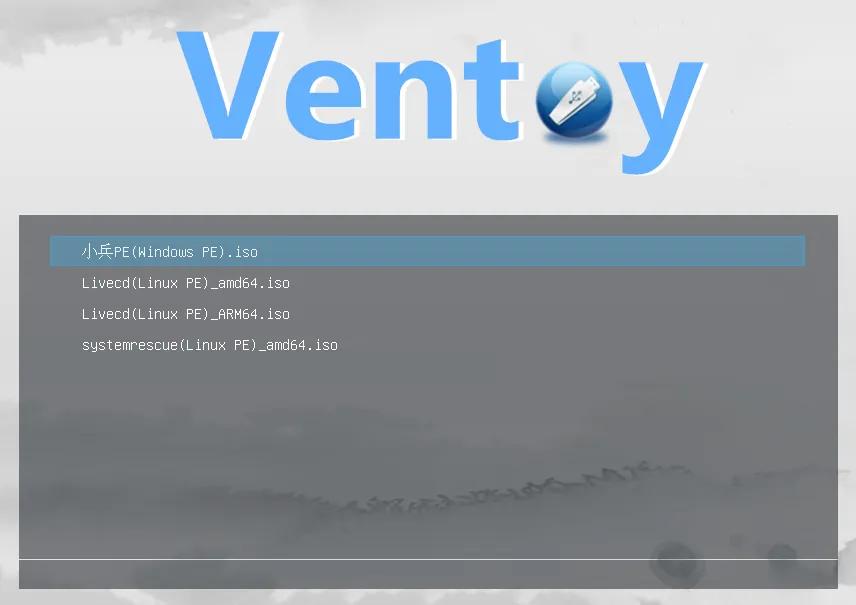
Another key advantage is compatibility. This type of tool can load almost any ISO image file, whether it is a Windows PE system maintenance image, a Linux Live CD, or various dedicated hard disk detection tools. This eliminates the need for maintenance personnel to prepare different media for different tools.
How to prepare and maintain ISO files
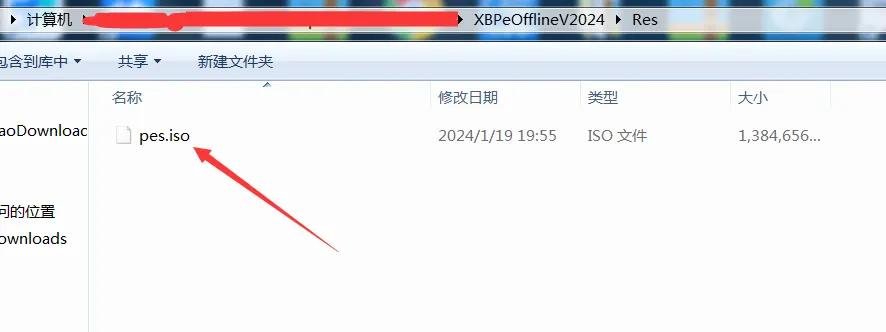
When maintenance is required, the first step is to prepare the corresponding system image in advance. For the Windows platform, you have to download a PE system ISO file with rich functions, such as a version that integrates partitioning, backup, and network tools. For Linux, you have to download a Live image specifically for system assistance, such as Ubuntu Live or GParted Live.
You need to store these ISO files on your computer's hard drive or in the download directory, and name them according to their purpose. Pay attention to check the file integrity. The presence of damaged ISO files will cause startup failure. Generally speaking, the size of a fully functional Windows PE image is about a few hundred MB to several GB, while a Linux Live image is between 1GB and 4GB.
Start the U disk creation process
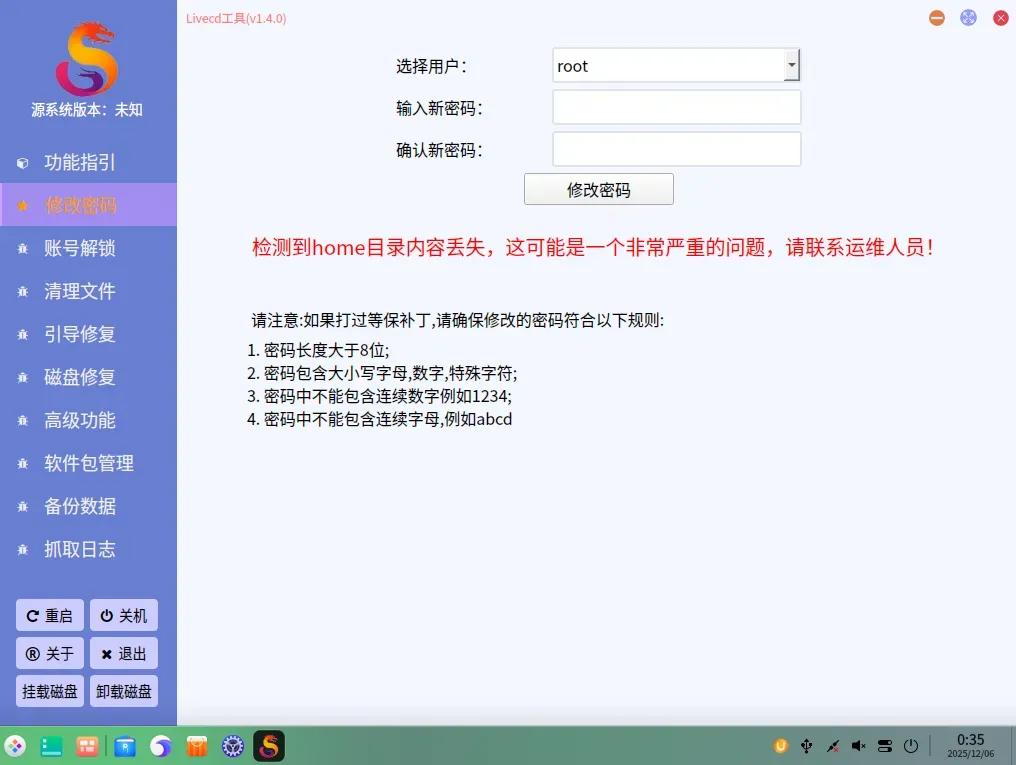
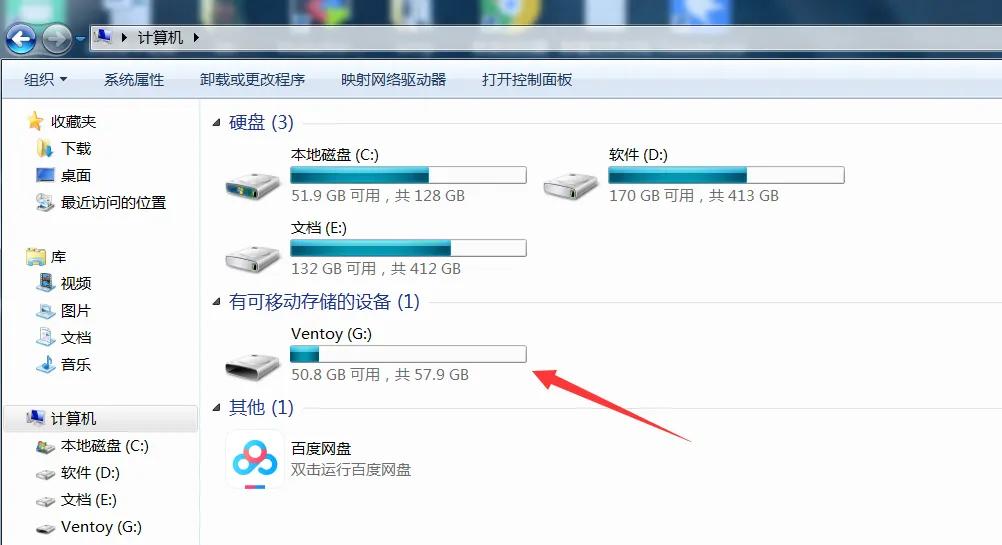
As for making a boot disk, choosing a reliable production tool is the first step. Then, you need to insert the USB flash drive into the computer, and then run the tool. After running the tool, the interface will probably let you select the USB flash drive device and the image to be written. However, here we are just initializing the USB flash drive to make it capable of booting multiple systems, not writing to a single system.
During the production process, the tool will format the USB flash drive. Please be sure to back up all important data in the USB flash drive in advance. Afterwards, the tool will create a special partition in the USB flash drive, and the tool will also create a boot menu in the USB flash drive. This process of creating a special partition and boot menu usually only takes a few minutes to complete.
Integrate multiple system images

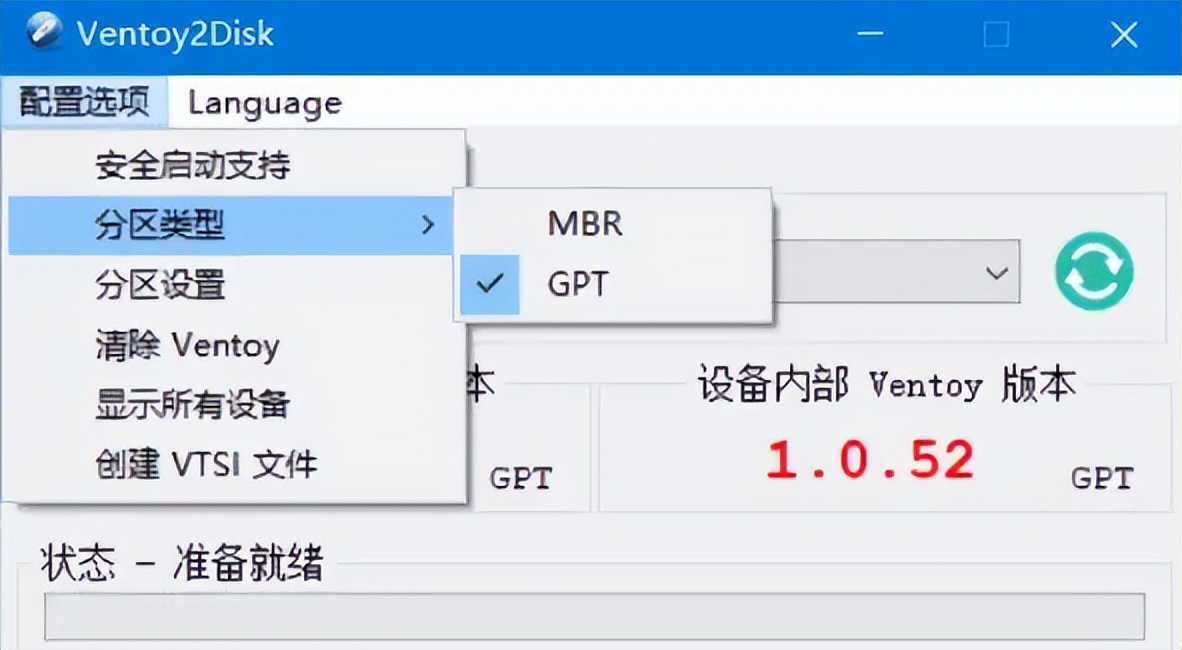
After making a USB flash drive with boot capability, integrating multiple systems becomes particularly easy and convenient. You only need to prepare the Windows PE ISO file and the Linux PE ISO file that you downloaded before, and directly copy or drag them to the root directory of the USB flash drive or the designated folder where the files are placed.
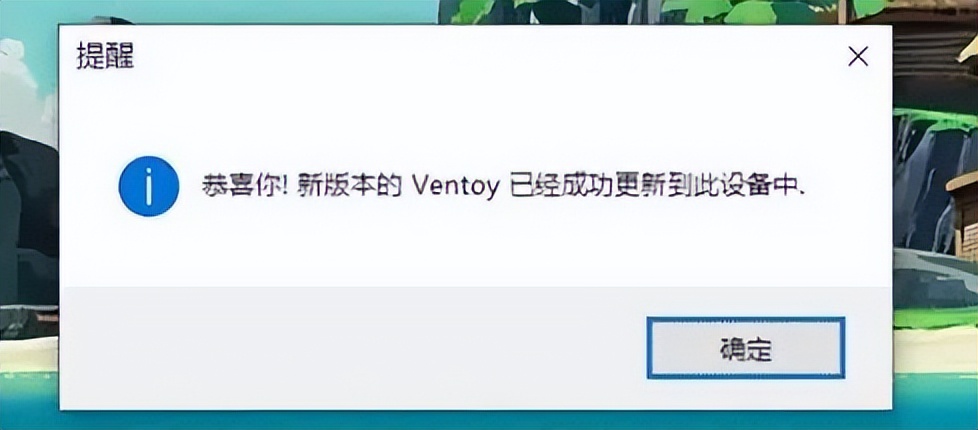
There is a method that does not require repeated formatting of the USB flash drive. When you need to update a maintenance system, you only need to replace the old files saved in the USB flash drive with the new version of the ISO file. You can easily integrate four or more systems as long as the USB flash drive has enough free space.

Actual startup and usage scenarios
When in use, insert the USB flash drive into the computer to be maintained, press the specific key (such as F12, Esc or Del) when booting to enter the boot menu and select to boot from the USB flash drive. Then, a graphical or list-like menu will appear on the screen, listing all the system images you have placed.
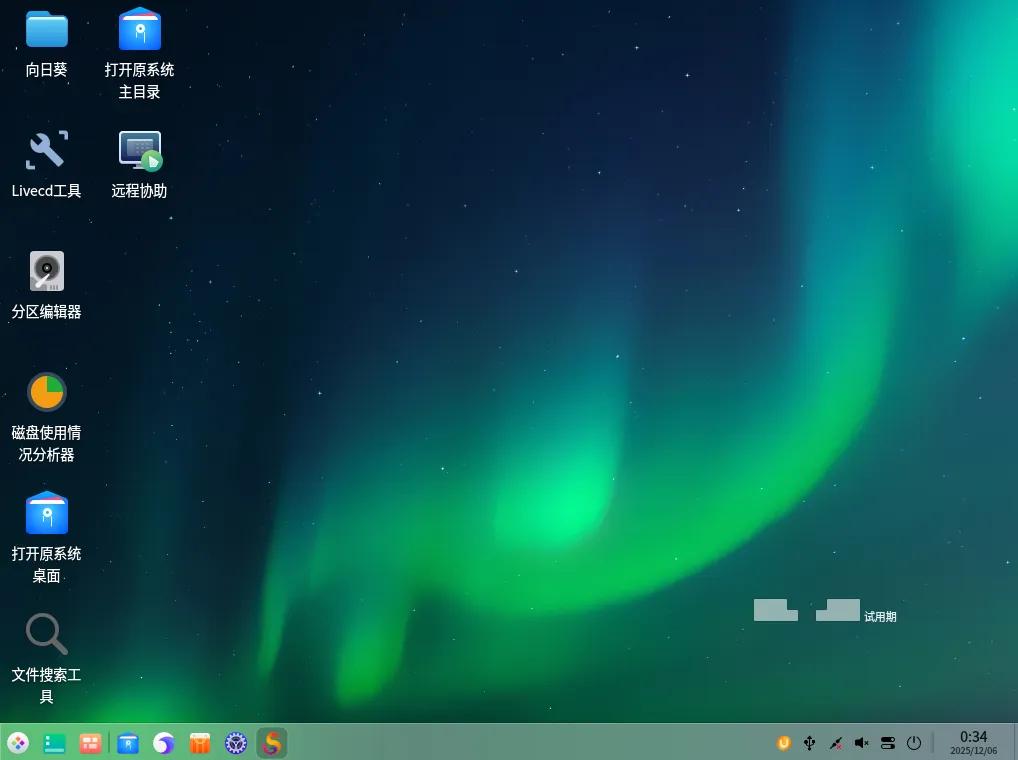
You can use the arrow keys to select the system that needs to be started, such as selecting Windows PE for partition operations or password clearing, and selecting Linux PE for file recovery or system repair. Each system will run independently without interfering with each other, just like booting from its own CD.
Capacity planning and considerations
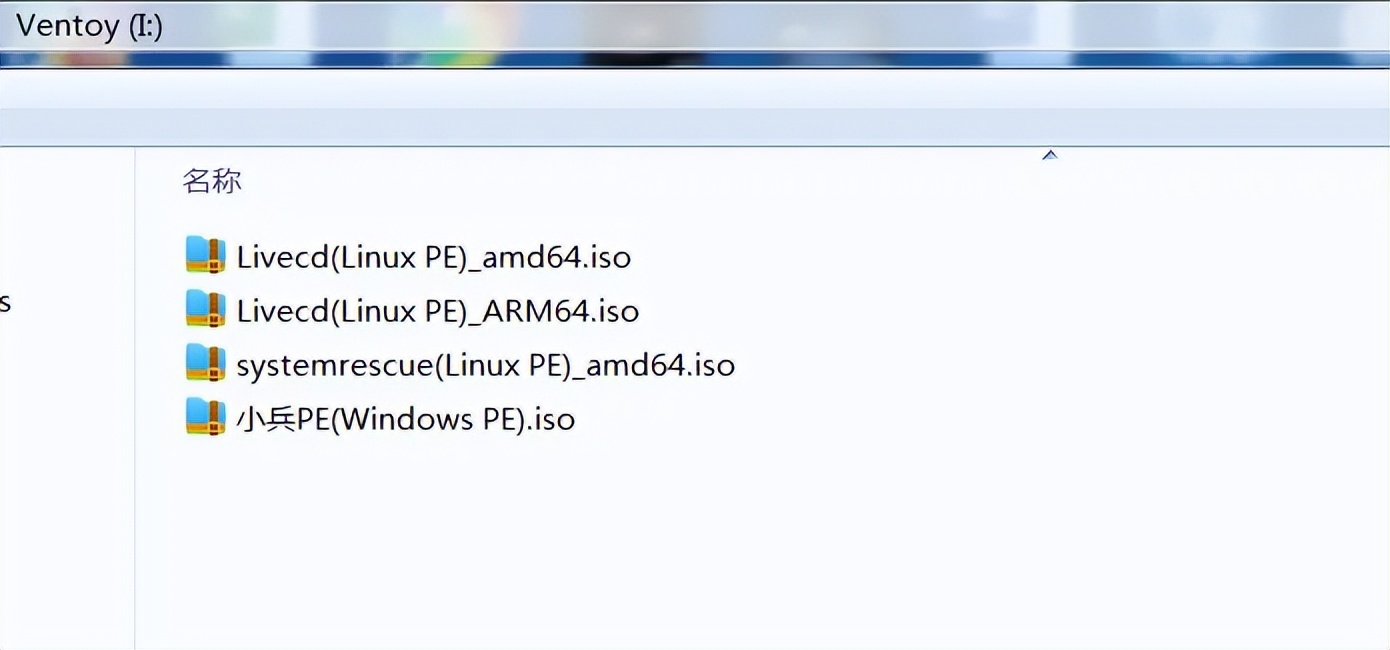
In terms of U disk capacity, if all four of your PE systems are streamlined versions, then an 8GB U disk may be able to meet the needs. However, in order to be more leisurely and handy, it is recommended to choose a USB flash drive with 32GB or larger capacity. This ensures that you have enough space to store large images, temporary files, and user data that needs to be backed up.
You need to pay attention to boot mode matching. If the computer only supports UEFI mode, then you should choose the GPT partition format when making a USB flash drive. If the computer supports both traditional BIOS and UEFI, then choosing the MBR format will generally have better compatibility. Choosing the wrong format may result in failure to boot.
In your usual situation, do you more frequently encounter problems with your laptop with the help of Windows PE, or do you use Linux PE to solve them? Please share your personal past experiences, thoughts and opinions in the comment area. If you feel this article is helpful, please give it a like to support it.