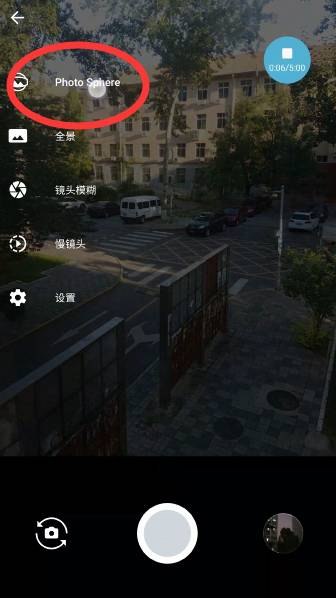
Taking spherical panoramic photos with the help of a mobile phone will bring an immersive viewing experience that ordinary photos cannot show. The built-in panoramic mode in Google Camera can make this operation easier, simple and automated.

Basic operations for panoramic photography
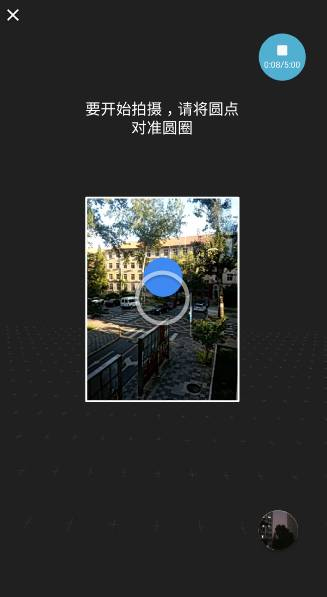
After opening the Google Camera app, slide to the left on the viewfinder interface to find the function option called "Photo Sphere". After clicking and entering, the screen will transform into a spherical viewfinder interface. In the center is a blue circular logo, which represents the current position of your phone, which is the center of future photos.
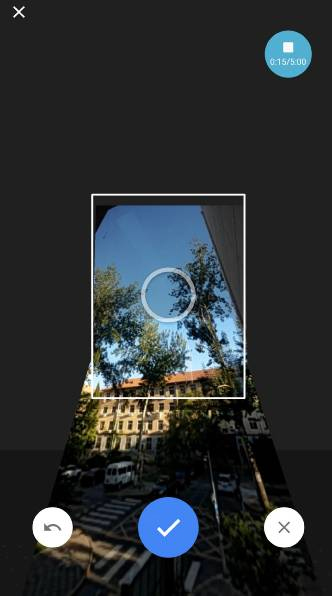
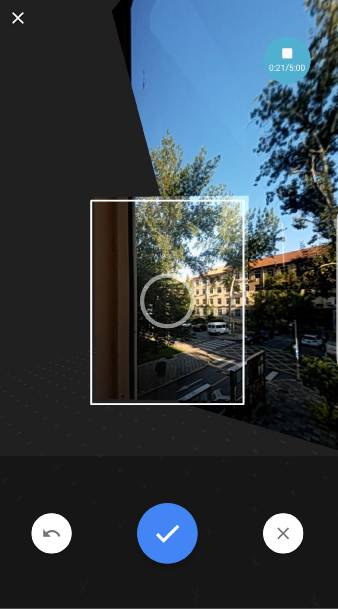
When you start shooting, you must first point the phone camera at the starting blue dot. When the device calibration is successful, white dots will begin to appear on the interface to guide shooting. You just need to move your phone slowly and steadily, place these white dots one by one in the center of the screen, and the app will capture the required screen data on its own.
Things to note during the shooting process
When taking spherical panoramic photography, the most critical point is to continue to maintain a stable and smooth movement state. Whether the movement speed is too fast or the mobile phone is shaking, it is very likely to cause gaps or blurry images during the splicing of the screen. The suggestion is to use your feet as the axis of support and slowly turn your body on the spot. At the same time, make sure that the height of the phone is maintained at eye level.
After completing the shooting of a complete circle, the app will prompt you to move your phone up or down to complete the sky and ground pictures. After collecting all images with necessary angles, Google Camera will start stitching and rendering on its own in the background. The entire process does not require manual intervention, but the splicing speed is determined by the processing performance of the mobile phone.
How to set up the watermark function
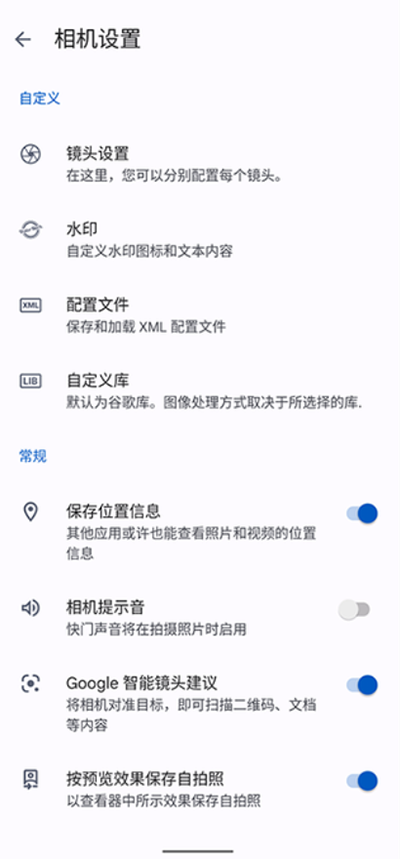
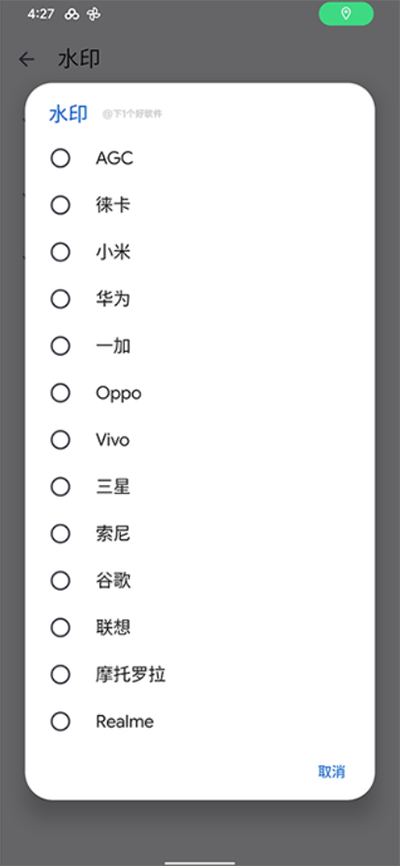
Google Camera has the ability to add a custom watermark to the photos taken. First, tap the gear icon in the application interface to enter the settings menu. Find the "Watermark" option in the menu list and click to enter. Here you can choose whether to display the watermark of the device model.
The watermark function provides more in-depth customization options, allowing users to edit the displayed text content, such as changing it to their own name or shooting date. After the settings are completed, you must first turn off the watermark icon in the upper right corner of the shooting interface, and then turn it on again before the new settings will take effect.
Rich built-in shooting functions

In addition to the panorama mode, Google Camera integrates many practical tools. For example, you can select different filter effects in the shooting interface to change the style of the photo in real time. When shooting a portrait, you can turn on the beauty function to intelligently optimize the skin color and details of the portrait.
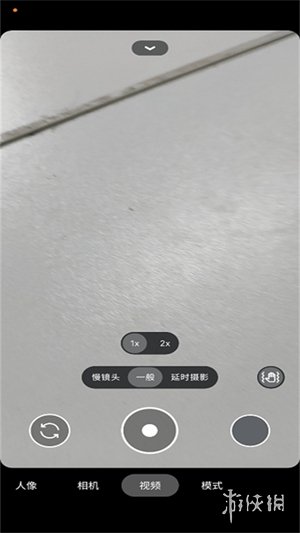
The app also supports delayed shooting, which conveniently allows users to take group selfies or steady shots after setting a countdown. After the shooting is completed, the system will often automatically optimize the color and exposure of the photos based on the scene. Users can also choose to save the photos directly to the local photo album of the phone.
Import and management of configuration files
For high-end users, Google Camera supports importing configuration files to expand functions or adjust image quality. After entering the settings menu, find the "Profile" related options and save the current settings first. Then place the downloaded configuration file into the specified directory through the phone's file manager.
Go back to the settings interface of Google Camera and refresh or re-enter the configuration file options. Generally, you can see the newly imported file and load it for use. This function allows users to try different shooting parameter combinations debugged by other developers in order to obtain better image quality performance.
Have you ever tried to use your mobile phone to take spherical panoramic photos? What kind of scenes or moments do you think such immersive photos are most suitable for recording? You are welcome to share your works and opinions in the comment area. If you think this article is useful, please like it and support it.